Agent Sessions Explorer
In brief: Open Agent Sessions Explorer from Studio Settings → AgentWatch to browse watched agent chats, search and filter sessions, inspect extraction runs and stats, and trigger extractions on demand.
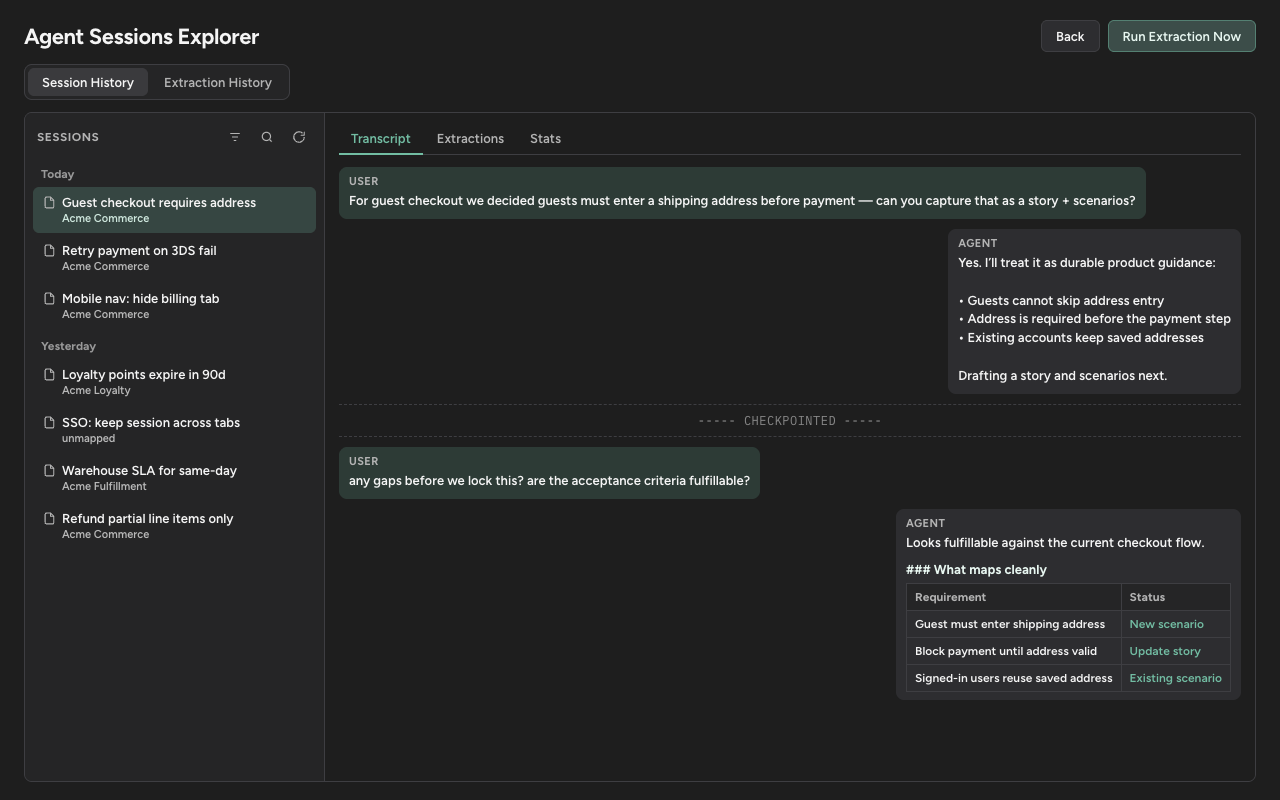
Agent Sessions Explorer is the Studio surface for inspecting what AgentWatch has indexed and processed. Use it to verify that sessions are mapped correctly, find a specific conversation, understand why an extraction ran (or was skipped), and force a sync when you do not want to wait for the next cadence tick.
How to open it
- Open TestChimp Studio.
- Go to Settings → AgentWatch.
- Click Explore Sessions.
The explorer opens over the AgentWatch settings pane. Use Back to return to settings. AgentWatch (and the AgentsView daemon) should be enabled so sessions can load—see How to enable and configure.
What you can do
| Capability | Where |
|---|---|
| Browse agent conversations across supported providers | Session History list (left) |
| Filter by mapped project | Filter control in the list header |
| Full-text search chats | Search control in the list header |
| Read a session transcript and checkpoint | Session detail → Transcript |
| Inspect extraction pipeline history | Extraction History, or session → Extractions |
| View session processing stats | Session detail → Stats |
| Force extraction now (all eligible sessions) | Run Extraction Now |
| Re-run extraction for one session | Session → Stats → Re-run extraction |
Session History
Toggle Session History to browse conversations AgentWatch has indexed from your watched agents (Cursor, Claude Code, Codex, and the other providers you enabled).
Sessions are grouped by recency (Today, Yesterday, then by date). Select a session to open the detail pane:
- Transcript — full user / agent message thread, with a checkpoint marker showing how far AgentWatch has processed the chat
- Extractions — extraction runs that touched this session (status, trigger, provider, timestamps), with Jev results and LLM I/O when present
- Stats — project mapping, last checkpoint time, checkpoint index, fingerprint status, message counts (total / user / agent / unprocessed)
Filter and search
In the list header:
- Filter — narrow to one mapped TestChimp project (or clear to show all)
- Search — full-text search over session content (via AgentsView), plus matching on labels, cwd, session id, and project name
- Refresh — reload the session or extraction list from the daemon / local store
Active project filters appear as a closable tag under the header.
Extraction History
Toggle Extraction History to browse recent AgentWatch extraction runs across sessions—not only the automatic cadence ticks, but also forced runs.
Select a run to inspect:
- JEV results — filter status, skip reason, project, neighbours, and chunk preview
- LLM I/O — provider, model, prompt / response, and plan preview when the run authored or updated a plan
- Errors — failure or skip detail when the run did not complete normally
This is the fastest place to confirm that a forced extraction produced new runs, or to diagnose skips and filter outcomes described in How filtering works.
Force extractions
Run Extraction Now
At the top of the explorer, Run Extraction Now starts AgentWatch extraction immediately instead of waiting for the sync cadence.
- Click Run Extraction Now.
- Optionally set Lookback (days) (default follows Studio’s AgentWatch lookback, typically ~90 days).
- Confirm.
The run can take a few minutes. When it finishes, the explorer refreshes and switches to Extraction History so you can review new runs.
Re-run a single session
On a selected session’s Stats tab:
- Re-run extraction — force processing for that session only, then open its Extractions tab with the latest run selected
- Clear checkpoint — reset the processing checkpoint so the next extraction can reconsider earlier messages (use when a session was mutated or you need a clean reprocess)
When to use the explorer
| Situation | What to do |
|---|---|
| Confirm agents are being watched | Open Session History; ensure the daemon is running if the list is empty |
| Find a decision discussed in chat | Search, then open Transcript |
| Check why no plan appeared | Open Extraction History / session Extractions for skips, Jev scores, and errors |
| Need updates before the next cadence | Run Extraction Now, or Re-run extraction on a specific session |
| Session looks stuck or re-anchored | Check Stats fingerprint and checkpoint; clear checkpoint and re-run if needed |
Learn more
FAQ
How do I open Agent Sessions Explorer?
In TestChimp Studio: Settings → AgentWatch → Explore Sessions.
Can I search agent conversations?
Yes. Use the search control for full-text search over session content, plus matching on labels, cwd, session id, and project name. Filter narrows the list to one mapped project.
What is Extraction History?
A view of recent AgentWatch extraction runs—Jev results, LLM I/O, and errors—across cadence ticks and forced runs.
How do I force an extraction?
Use Run Extraction Now for all eligible sessions (optional lookback days), or open a session’s Stats tab and choose Re-run extraction for that session only.