Create an automation
In brief: Create an automation from Workflows → Automations (or contextual CTAs), walk through trigger → action → timing & gates → review, then track runs under Workflow Executions.
Before you start
- At least one cloud agent strategy configured—ChimpHands (recommended) and/or GitHub Issue or Webhook under Project Settings → Automations and ChimpHands setup.
- Policies for the workflows you will invoke (often seeded by
/testchimp init). Workflows that needconnect-to-test-envstay Missing config until that policy exists. - Decide the aggregation and whether humans must approve invoke and/or plan execute.
Entry points
| From | What is prefilled |
|---|---|
| Workflows → Automations → Create Automation | Nothing (full wizard) |
| Workflow detail → Automations | That workflow as the action |
| Issues | Entity = Issue |
| Plans | Entity = Story or Scenario (from folder scope) |
| Automation Batches | Entity = Test execution batch |
| Releases | Entity = Release |
All paths open the same full-page wizard (create and edit share one UI). Editing: open an automation card from the list.
Step 1 — Configure the trigger
Pick when the automation should fire.
- Optionally start from a popular template chip (severity high, story ready, batch status failed, …)—this sets entity, event, and a starter condition.
- Choose Entity, then Event (options depend on the entity).
- Add optional conditions. Every condition is AND-ed.
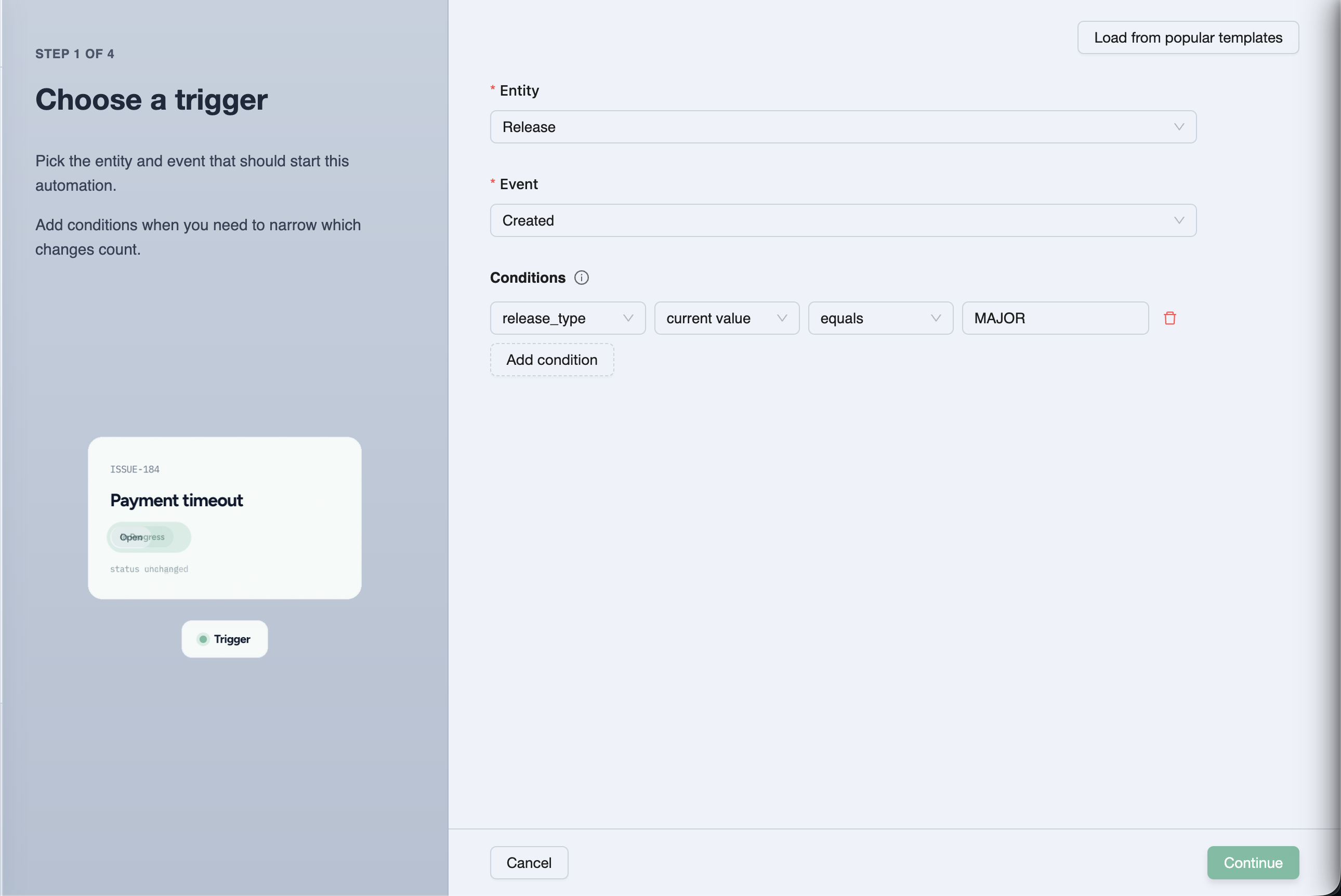
Save mental model: Issue created with severity = HIGH and reported_by ≠ ExploreChimp is a different automation from any issue created.
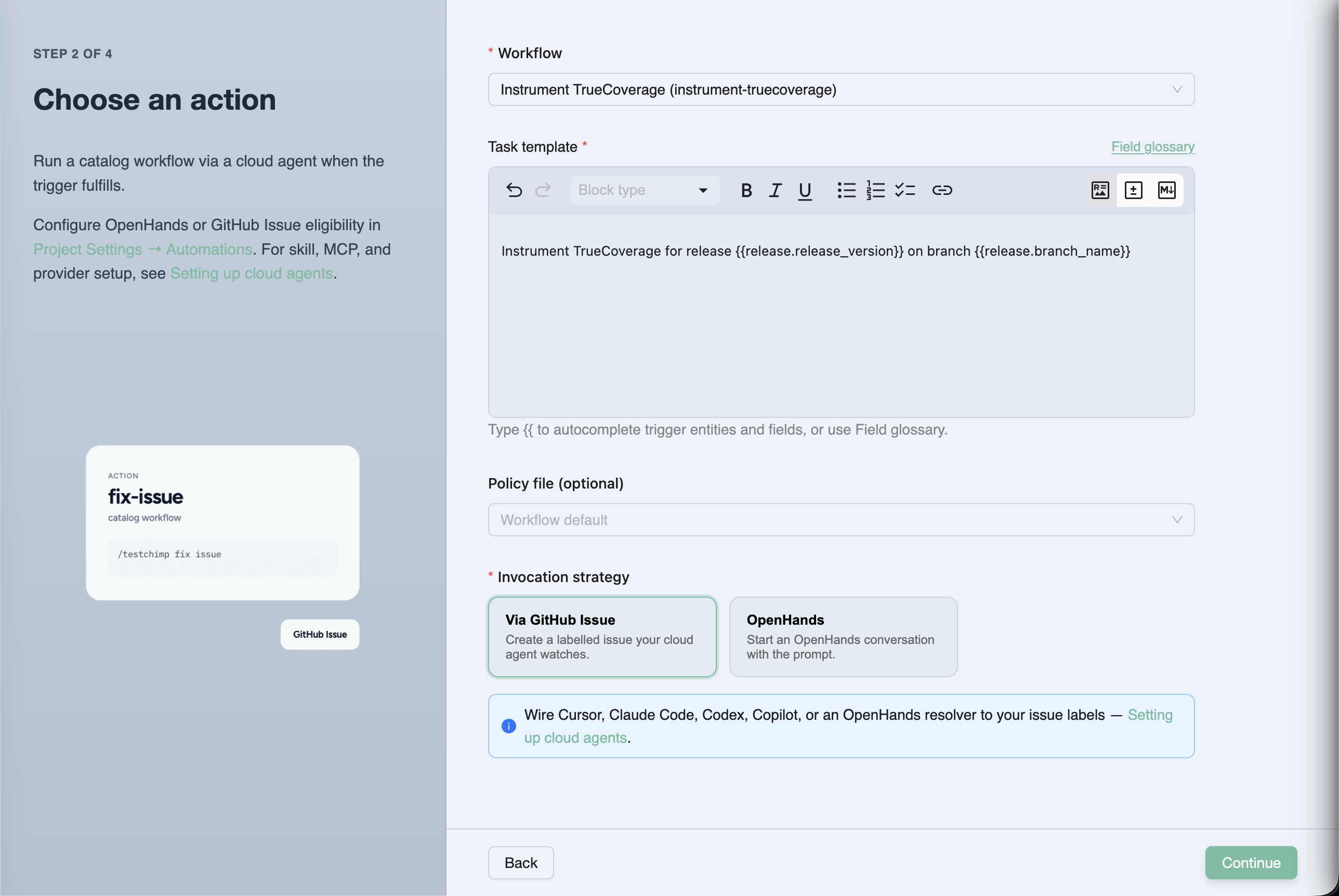
Step 2 — Configure the action
Pick what the cloud agent should run.
- Action type: Execute agent workflow (only option today).
- Select the workflow from the catalog.
- Edit the task template. Type
{{for autocomplete of entity / event / project fields. Defaults are sensible per workflow. - Select a policy (defaults to the workflow’s default; missing required policies show a warning).
- Choose an invocation strategy card: ChimpHands, Via GitHub Issue, or Via Webhook. Unconfigured strategies show a warning — for webhook you can configure nicknames/URL/auth in a modal without leaving the wizard. When multiple webhooks exist, pick a nickname on the action step.
Step 3 — Timing and human gates
- Choose aggregation: Immediate, Buffered (default), or Windowed—and fill grace / max window / max events / window hours as needed.
- Toggle Require approval before invoke and/or Require approval before plan execute if you want human gates.
- If either gate is on, choose who is notified (user, role, or assignee when the entity supports it).
New automations are enabled by default. Disable later from the automations list without deleting the definition.
Step 4 — Review and create
Confirm the summary (trigger, action, aggregation, gates), then Create Automation (or save when editing). You return to the automations list with a summary card for the new rule.
After creation
- Trigger a matching event in a safe environment (or wait for production traffic).
- Open Executions → Workflow Executions.
- Approve if gated; otherwise watch Queued → Running → Done / Failed.
- Follow the ChimpHands session link, GitHub issue, or webhook execution detail from the workflow execution.
- Tune task templates, conditions, or aggregation if runs are too noisy or too sparse.
Disable, edit, or delete
- Disable — toggle from the automations list (stops matching without removing history).
- Edit — open the summary card to reopen the wizard with values loaded.
- Delete — remove the definition when the rule is obsolete.
Tips
- Prefer Buffered when CI or ExploreChimp can emit many related events in a short window.
- Keep task templates short and identity-rich (
{{issue.id}}, branch, batch id)—the skill and MCP resolve the rest. - Start with invoke approval on high-blast-radius workflows (
implement, broadrun-qa) until you trust the conditions. - Respect the hourly cap; several Immediate automations can queue behind each other during incident storms.
Related
FAQ
Where do I open the automation wizard?
Workflows → Automations → Create Automation, or Automations CTAs on Issues, Plans, batches, releases, and workflow detail pages with entity or workflow prefilled.
What are the wizard steps?
Configure trigger (entity, event, conditions), configure action (workflow, task template, policy, invocation strategy), set aggregation and human gates, then review and create.
Are new automations enabled by default?
Yes. Disable from the automations list later without deleting the definition.