GitHub
In brief: GitHub integration wires TestChimp to your repositories for folder mapping, branch-aware sync, and the PR-centric workflow /testchimp test expects.
GitHub integration uses the TestChimp GitHub App (project-level installation). You do not configure repository webhooks manually — the app receives push, branch create/delete, and pull request merged events on your behalf.
Prerequisites
- A TestChimp project with access to Teams tier features (third-party workflow integrations).
- Admin access on the GitHub organization or account where the repository lives, so you can install the GitHub App.
- The repository should already exist (or you can map folders into an empty repo and let initial sync scaffold content).
Step 1: Install the GitHub App
- In TestChimp → your project → Project settings → Integrations → GitHub, click Connect GitHub.
- You are redirected to GitHub to install the TestChimp GitHub App for the organization or personal account.
- Choose which repositories the app may access (all repositories or selected repositories).
- Complete installation. GitHub redirects back to TestChimp with the installation linked to your project.
If you change which repos the app can access later, use Reconnect in Project settings to update the installation.
:::tip Re-install or expand access Your folder mappings are saved in TestChimp even if the app installation is removed. Re-install the app on the same project to restore sync without re-mapping folders. :::
Step 2: Select repository and map folders
After the app is connected:
- In the GitHub integration panel, choose the repository from the dropdown (repos visible to the installation).
- Map the Tests folder — the SmartTests root in your repo (where Playwright/Mobilewright runs).
- Map the Plans folder — the markdown test-planning root (stories, scenarios, knowledge).
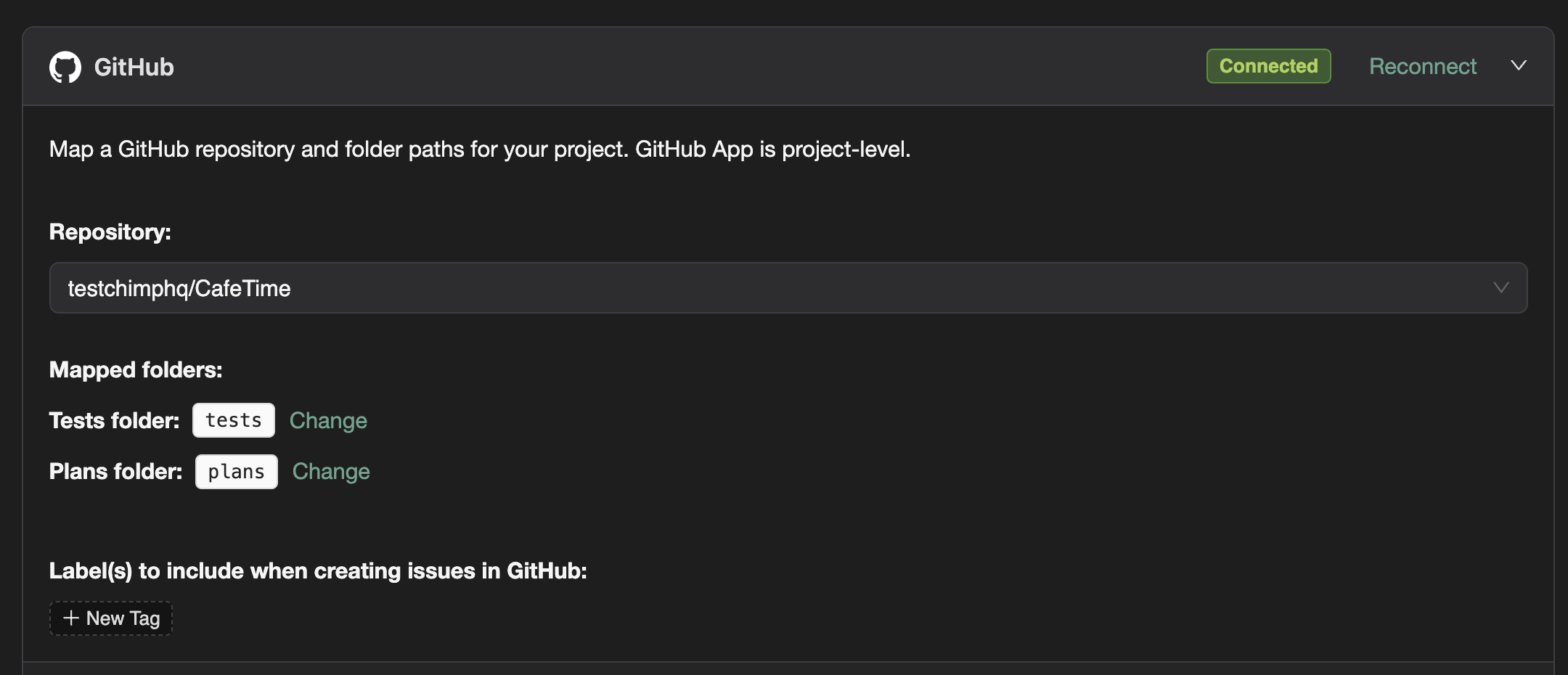
When you map each folder for the first time, TestChimp may open an initial sync pull request on your default branch:
| Mapping | Typical PR branch prefix | Purpose |
|---|---|---|
| Tests | testchimp-test-initial-map-… | Marker file, scaffold, non-conflicting outgoing SmartTests files |
| Plans | testchimp-plan-initial-map-… | Marker file, scaffold, non-conflicting outgoing plan files |
Review and merge these PRs like any other change.
Branch naming rules
If GitHub rulesets or branch protections restrict branch names, allow prefixes starting with testchimp-. Ongoing sync uses names such as testchimp-test-sync-… and testchimp-plan-export-….
Step 3: Sync SmartTests (branch-aware)
SmartTests sync is branch-aware:
- Open SmartTests in TestChimp.
- Use the branches control in the left pane to select the branch you are working on (for example
main,develop, or a feature branch). - Open Sync with GitHub to analyze incoming/outgoing changes, resolve conflicts, pull from Git, or raise a PR.
Details of the day-to-day workflow: GitHub Sync.
When you push changes from TestChimp, head branches use the testchimp-test-sync-… or testchimp-plan-sync-… pattern targeting your selected branch.
Step 4: Export test plans
With the Plans folder mapped, use Test Planning → Import/Export → Sync to Git Repo to raise a PR with plan changes. See Export to Git.
Plan export PRs use the testchimp-plan-export-… branch prefix.
Inbound sync (Git → TestChimp)
The GitHub App delivers webhooks to TestChimp automatically. You do not configure these in your repository settings.
| Event | What TestChimp does |
|---|---|
| Push to a branch | Imports added/modified files under mapped tests and plans paths on that branch |
| Branch created | Registers the branch for branch-aware SmartTests workflows |
| Branch deleted | Archives branch metadata in TestChimp |
| Pull request merged | Reconciles last_synced state for files that were part of the merged PR under mapped folders |
Only changes under your mapped folder paths are applied; other paths in the repository are ignored.
Optional: GitHub issue labels
In the GitHub integration panel you can configure issue labels TestChimp applies when creating GitHub issues from bugs or workflows. This is separate from SmartTests/plans sync.
Optional: Branch-specific deployment URLs
To run tests or explorations against PR preview URLs, configure base URL templates and per-branch overrides in Project settings → Branch management. See Branch-specific test execution.
Troubleshooting
| Symptom | Check |
|---|---|
| Repository list empty | GitHub App installation scope — grant access to the repo or reconnect |
| Sync disabled / “Install GitHub App” | Complete app installation; mapping alone is not enough |
| PR creation blocked | Branch naming rules — allow testchimp-* |
| Inbound changes not appearing | Push touched paths outside mapped folders, or wrong branch selected in SmartTests |
| Plans not on feature branch | By design — test planning stays on default branch |
See also
FAQ
What permissions does TestChimp need?
Repo access to mapped plans/ and tests/ paths plus webhook delivery for sync events—grant least privilege required by your org.
Does it work with GitHub Actions?
Yes—run Playwright with @testchimp/playwright in Actions; see run-in-ci and ci-cd docs.
Monorepo support?
Map subfolder paths for plans and SmartTests within large monorepos during project setup.