GitLab
In brief: GitLab integration mirrors GitHub capabilities—repo mapping, bi-directional sync, and merge-request scoped QA for teams on GitLab CI.
GitLab integration is project-level: you connect TestChimp to one GitLab project (repository) using a project access token and a project webhook. TestChimp uses the token for API access (list repos, read/write files, create merge requests) and the webhook for inbound sync when commits land in Git.
Self-managed GitLab is supported — provide your instance root URL (not a project URL or /api/v4 path).
Prerequisites
- A GitLab project with permission to create project access tokens and project webhooks.
- TestChimp project with GitLab integration enabled.
- Network path from GitLab to your TestChimp featureservice API host (webhook delivery).
Overview of setup
- Configure GitLab base URL, project access token, and webhook signing token in TestChimp.
- Create a matching project webhook in GitLab (Push + Merge request events).
- Connect in TestChimp to validate the token.
- Select the repository and map Tests and Plans folders.
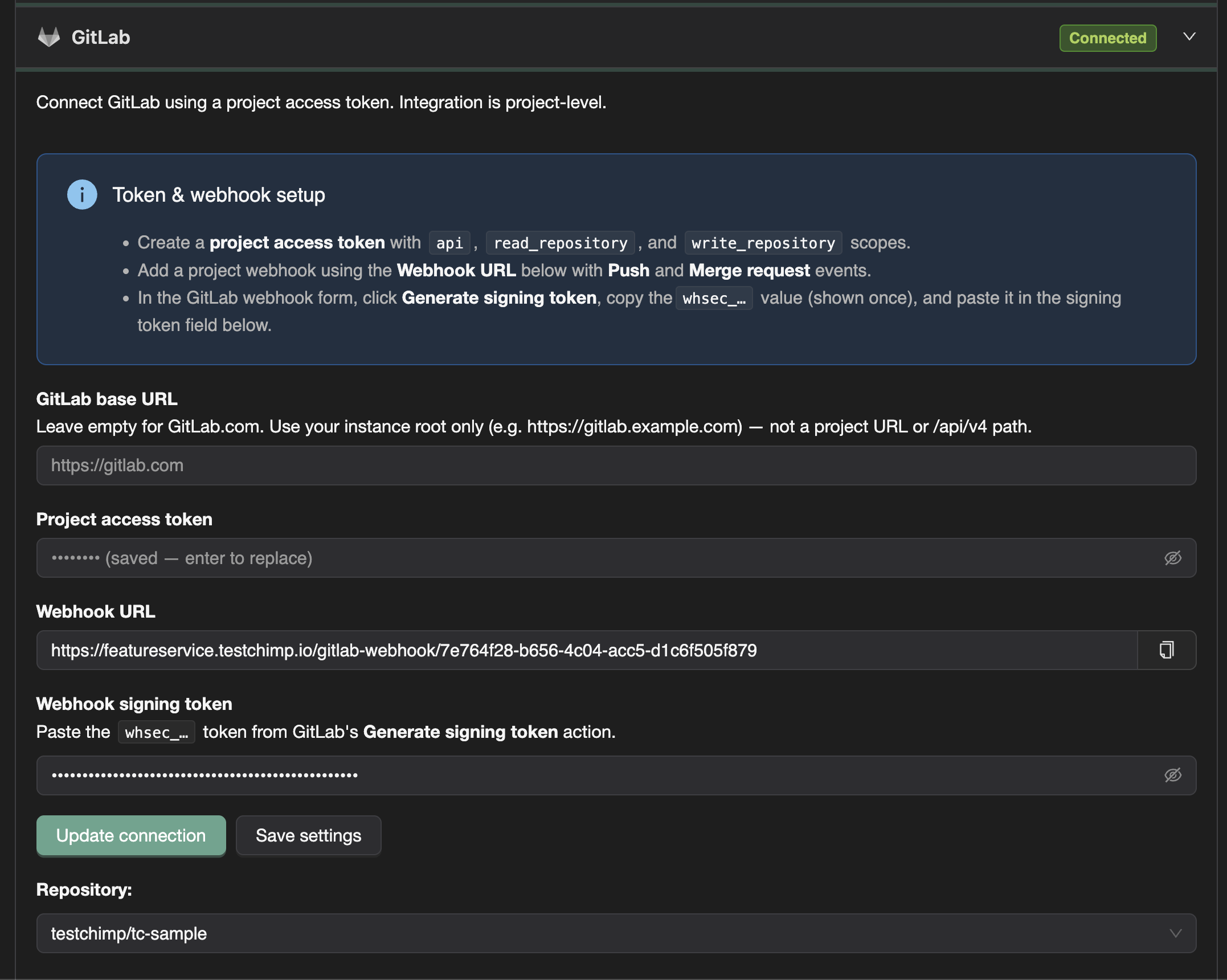
Step 1: Create a project access token (GitLab)
In GitLab → your project → Settings → Access tokens, create a project access token with these scopes:
| Scope | Why |
|---|---|
api | GitLab API access for sync, branches, and merge requests |
read_repository | Read files and tree contents under mapped folders |
write_repository | Push commits and create merge requests from TestChimp |
Copy the token when GitLab shows it (glpat-…); you will paste it into TestChimp once.
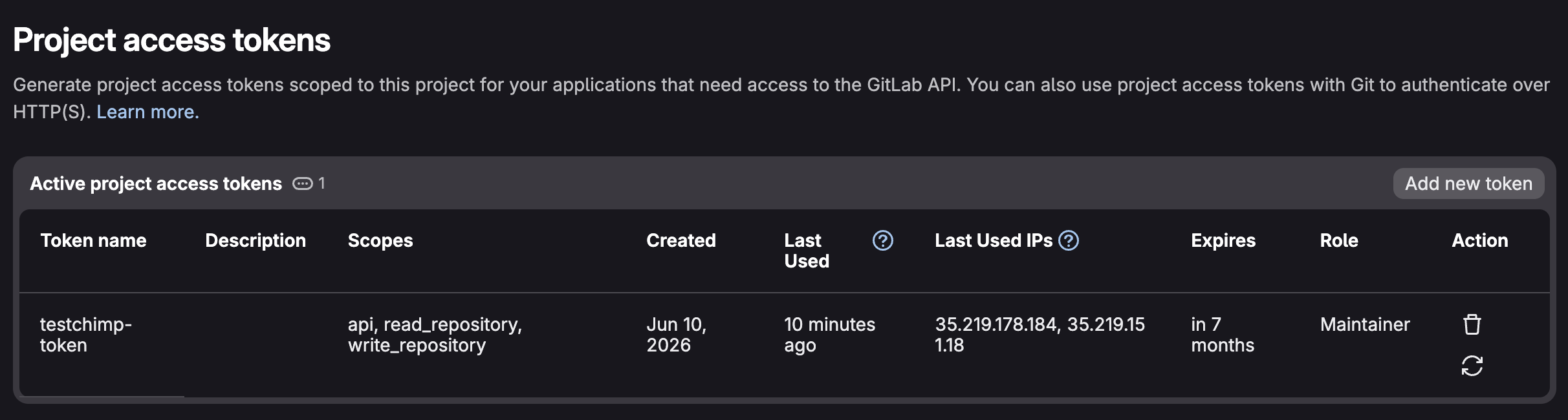
Step 2: Configure TestChimp (token, base URL, webhook secret)
In TestChimp → Project settings → Integrations → GitLab:
- GitLab base URL — leave empty for GitLab.com. For self-managed instances, enter the instance root only, e.g.
https://gitlab.example.com. - Project access token — paste the token from Step 1.
- Webhook URL — copy the URL shown in TestChimp (format:
{featureservice-host}/gitlab-webhook/{projectId}). You will paste this into GitLab in Step 3. - Webhook signing token — leave empty until Step 3 generates it; then paste the
whsec_…value here.
Click Connect to validate the token. Use Save settings after updating the signing token or base URL.
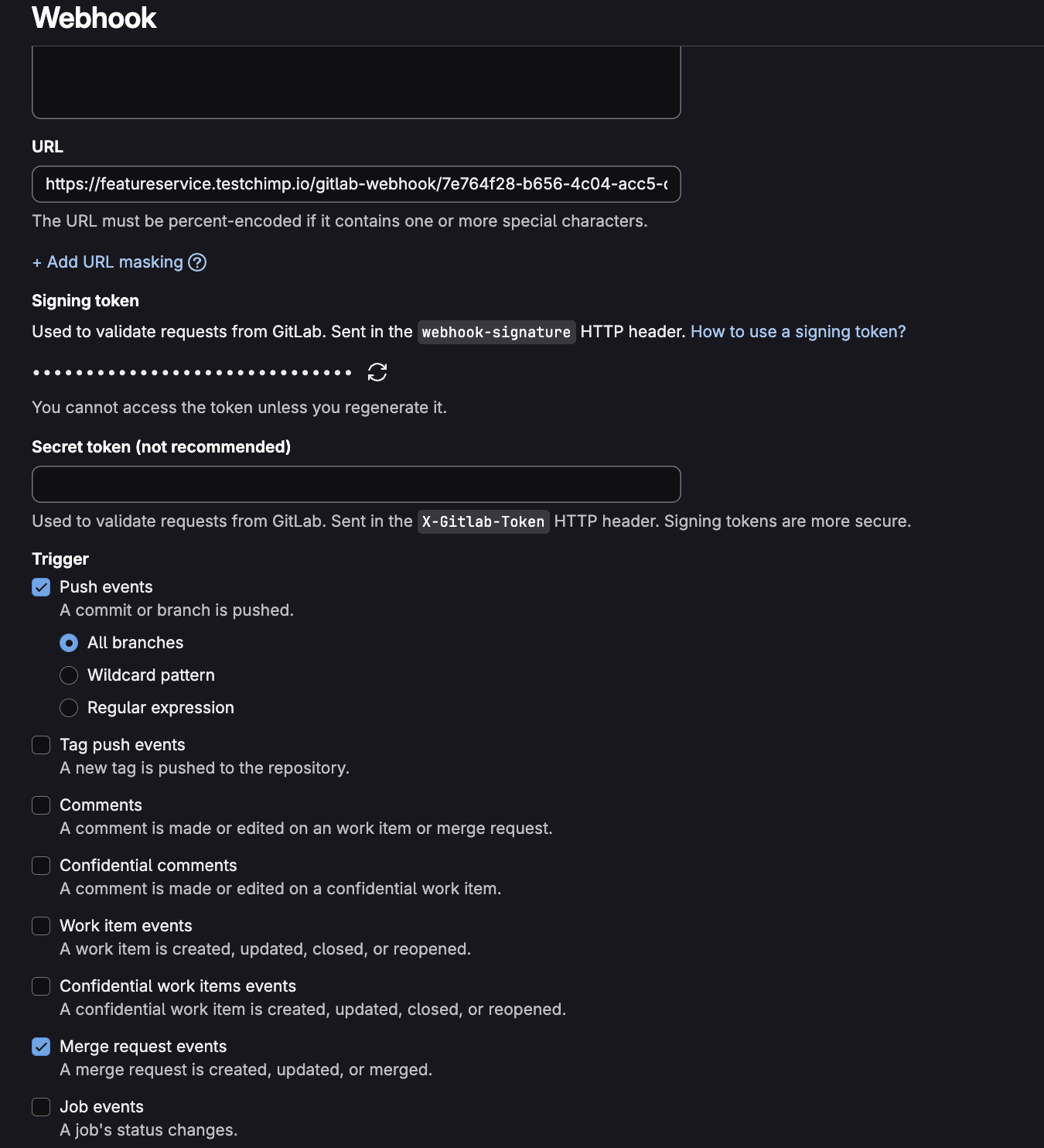
Step 3: Create the project webhook (GitLab)
In GitLab → your project → Settings → Webhooks:
- URL — paste the Webhook URL from TestChimp.
- Secret token / signing — click Generate signing token, copy the
whsec_…value (shown once), and paste it into TestChimp’s Webhook signing token field. Save settings in both GitLab and TestChimp. - Trigger — enable only the events TestChimp handles:
| Trigger | Required | Purpose |
|---|---|---|
| Push events | Yes | Import commits that touch mapped tests or plans paths on any branch; detect branch deletion |
| Merge request events | Yes | When an MR is merged, reconcile sync state for files that were part of that MR |
| Tag push events | No | Not used |
| Issue events | No | Not used |
| Note events | No | Not used |
| Job / Pipeline events | No | Not used |
| Wiki / Deployment / Feature flag / Release / Resource access token events | No | Not used |
- SSL verification — keep enabled for production GitLab.com; for local/dev instances you may disable only if you understand the risk.
- Save the webhook. Use Test → Push events in GitLab to confirm delivery if needed.
:::note Why Push and Merge request?
- Push applies file changes under your mapped folders to TestChimp for the pushed branch (and archives branch metadata when a branch is deleted).
- Merge request (merged state) updates
last_syncedreconciliation after TestChimp-raised MRs are merged, keeping platform and Git aligned. Other webhook types are ignored and add noise without benefit. :::
Step 4: Select repository and map folders
After Connect succeeds, the GitLab panel shows repository and folder mapping controls (same UX as GitHub):
- Select the GitLab project (
group/projectpath). - Map Tests folder — SmartTests root.
- Map Plans folder — markdown test-planning root.
Initial mapping may create merge requests on your default branch with prefixes testchimp-test-initial-map-… and testchimp-plan-initial-map-…. Review and merge them in GitLab.
If your GitLab project enforces branch naming rules, allow branches starting with testchimp- (sync and export use testchimp-test-sync-…, testchimp-plan-sync-…, testchimp-plan-export-…, etc.).
Step 5: Sync SmartTests and export plans
Once folders are mapped:
- SmartTests — use the branch selector and Sync with GitLab in the SmartTests IDE (same workflow as GitHub Sync, but merge requests instead of pull requests).
- Test planning — Import/Export → Sync to Git Repo raises an MR for plan changes. See Export to Git.
Inbound sync (Git → TestChimp)
| Webhook | When | Behavior |
|---|---|---|
| Push | Commits pushed to any branch | Applies added/modified paths under mapped tests and/or plans folders; ignores paths outside those trees |
| Push (branch delete) | after SHA is all zeros | Archives branch metadata in TestChimp |
| Merge request | MR state is merged | Reconciles sync metadata for changed paths under mapped folders on the target branch |
Webhook requests are authenticated with the whsec_… signing token (recommended). TestChimp verifies GitLab’s webhook-signature, webhook-id, and webhook-timestamp headers.
Self-managed GitLab
- Base URL must be the instance root (e.g.
https://gitlab.company.com), not…/group/projector…/api/v4. - Ensure GitLab can reach your TestChimp featureservice URL over HTTPS (or your approved internal route).
- Use a project access token on the same GitLab project you map in TestChimp.
Troubleshooting
| Symptom | Check |
|---|---|
| Token validation failed | Token scopes (api, read_repository, write_repository); token not expired; correct base URL |
| Webhook 401 Unauthorized | Signing token in TestChimp matches GitLab Generate signing token value; save settings after paste |
| Push not importing | Webhook triggers include Push events; changed files are under mapped folder paths; repo in payload matches mapped repository |
| MR merge not reconciling | Merge request events enabled; MR was merged (not just closed) |
| MR creation blocked | Branch naming rules — allow testchimp-* |
| Wrong repository in sync | Re-select repository in folder mapping; one TestChimp project → one GitLab project |
See also
- Code Repository — Overview
- GitHub integration
- Branch-specific test execution
- Run SmartTests in CI — includes a GitLab CI example
FAQ
Is setup similar to GitHub?
Yes—OAuth/connect project, map folders, enable sync; use GitLab CI docs for Playwright reporter wiring.
MR branch explorations?
Supported with preview URLs and branch-specific SmartTest configs like GitHub PR flows.
Self-managed GitLab?
Check current TestChimp docs for self-hosted GitLab compatibility and required network access.