How Issues Get Created
Short answer
TestChimp issues are created by agents, release checks, and humans. ExploreChimp files findings with screenshots, screen-states, and artifact references. Release UX checks and security scans produce issues scoped to a ship candidate. People use Create Issue for ad-hoc work items, or file bugs while capturing a manual test session. All paths land in the same Issues backlog.
Creation sources at a glance
| Source | Who / what | Default strengths |
|---|---|---|
| ExploreChimp | Exploratory agent on SmartTest journeys | Rich artifact reference, screen-state tags, links toward journeys/scenarios |
| Release checks | UX ExploreChimp + security scans from a release | Findings tied to the release and check run |
| Create Issue | Human in Issues UI | Fast title → full page to set type, severity, description, assignee |
| Manual session | Human via Chrome extension capture | Bug attached to a step in an auditable session |
ExploreChimp
ExploreChimp runs guided exploratory analysis along your SmartTests—DOM, screenshots, network, console, metrics, accessibility, and more. When it finds a problem, it creates an issue (reported by ExploreChimp) with:
- Title and description grounded in what was observed
- Severity / category when classified
- Screen-state tagging for Atlas and filters
- An artifact reference so the artifact viewer highlights where the problem appeared
- Links toward the related test journey (and scenario when available)
Open Issues → filter Reported by ExploreChimp (or open from Atlas / release ExploreChimp panels) to triage agent findings first.
See also: UX bug traceability and QA Intel bugs.
Release scans and checks
On a release, the Release Checks pane runs:
| Check | Creates / surfaces |
|---|---|
| UX Checks (ExploreChimp) | Exploratory findings as issues for the release range; View Bugs routes into Atlas or Issues |
| DAST | Dynamic (ZAP) findings as issues plus a DAST report |
| SAST | Semgrep findings as issues plus a SAST report |
| Secrets | Gitleaks findings (redacted) as issues plus a report |
| Dependency scan | Trivy CVE findings as issues plus a report |
Use this path when you want ship-candidate-scoped defect intake—not only continuous exploration on the default branch. After a check finishes, open the linked bugs, assign owners, set due dates, and track status on the kanban until Fixed.
Release intelligence also summarizes ExploreChimp findings in the commit range—see Release intelligence. Full how-to for each scanner: Release Checks.
Humans — Create Issue
From Issues:
- Click Create Issue
- Enter a title and confirm
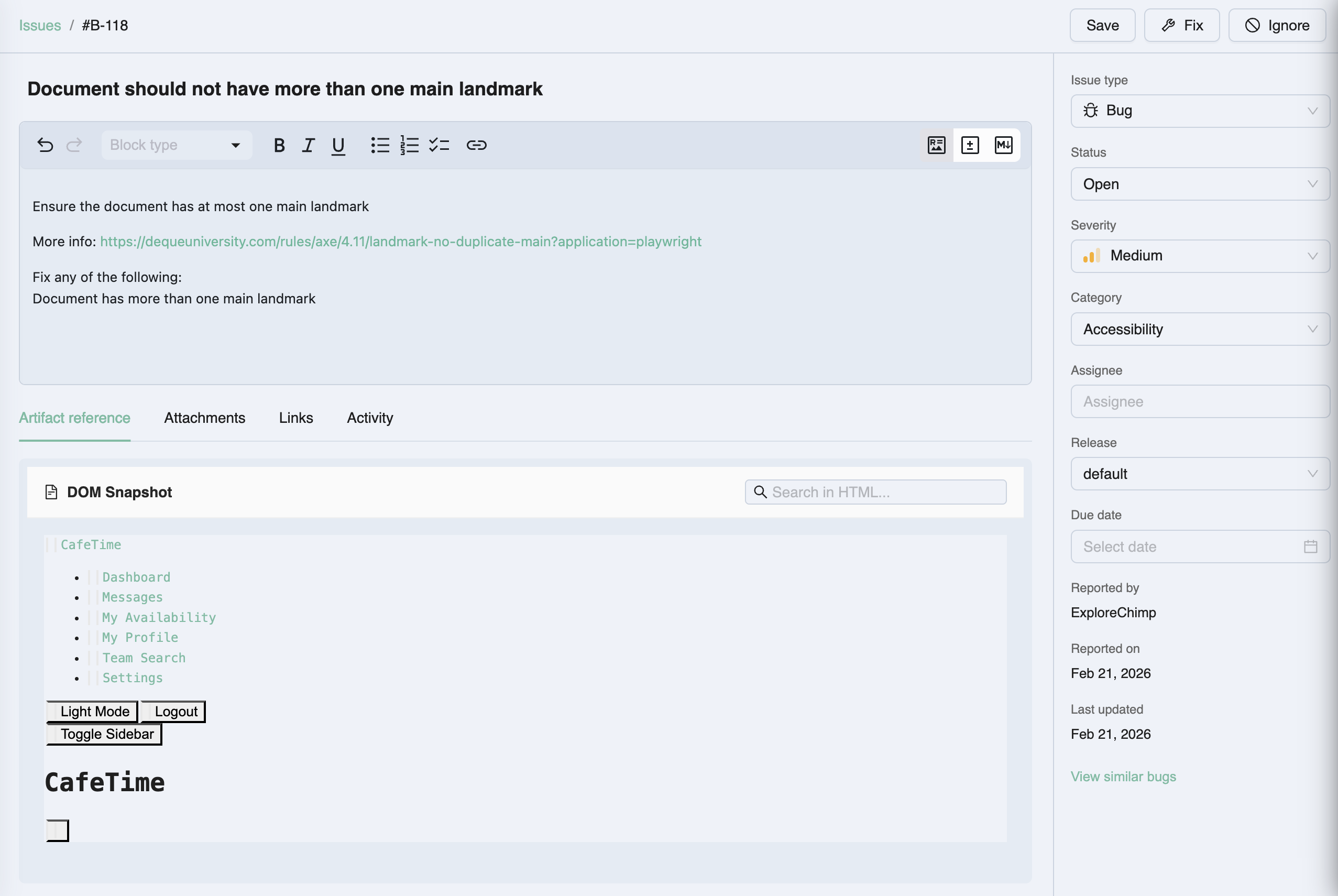
- TestChimp creates an issue (defaults: type Bug, medium severity, Open) and opens the full-page issue view
- Edit description (markdown), set issue type (Bug / Suggestion / Observation), status, severity, category, assignee, release, due date, attachments, and links
Use Create Issue for work that did not come from an agent—product bugs found offline, suggestions, observations for the team, or follow-ups spun out of a conversation.
For programmatic intake from CI, custom scanners, or other external systems, use the Programmatic Issue Creation API (POST /api/mcp/create_issue or testchimp create-issue).
Humans — manual session capture
During a manual test session in the Chrome extension, testers can Add bug on a step (with screen/state when available). When the session ends, those bugs are created in TestChimp with session evidence attached to the execution history.
This path keeps human exploratory or scripted manual QA connected to the same Issues backlog as agents—without a separate filing UI after the session.
After creation: same triage path
Regardless of source, the workflow is:
- List or filter in Issues (or open from Atlas / release View Bugs)
- Assign and set status / due date on the issue page or drag on kanban
- Collaborate in Activity; attach files; link stories and scenarios
- For agent issues, use Artifact reference and Fix flows where enabled (for example ChimpHands)
Related documentation
- Issue management overview
- Programmatic issue creation
- List view and kanban
- Issue page
- ExploreChimp
- Release management
- Release Checks
Frequently asked questions
How does ExploreChimp create issues?
During explorations, ExploreChimp analyzes the app along SmartTest journeys. When it finds a problem, it creates an issue with description, screen-state context, and an artifact reference for the artifact viewer—reported by ExploreChimp so you can filter agent-filed items.
What are release scans or release checks?
From a release’s Release Checks pane you run UX Checks (ExploreChimp) and security scans—DAST (ZAP), SAST (Semgrep), secrets (Gitleaks), and dependency (Trivy). Findings become issues scoped to that check/release, with Report and View Bugs links into the scanner report or Issues filtered to the scan. See the Release Checks docs for how each scanner is configured and run.
How do I create an issue manually?
On the Issues page, click Create Issue, enter a title, and confirm. The full issue page opens so you can set type, severity, description, assignee, release, attachments, and links. Defaults are Bug, medium severity, and Open.
Can I file bugs during manual testing?
Yes. During Chrome extension manual session capture, add a bug on a step. When you end the session, bugs are created in TestChimp with the session’s evidence.
From finding to tracked work in one product
Run ExploreChimp or release checks, or Create Issue yourself—every path lands in the same Issues backlog with evidence ready for triage.