Issue Page
Short answer
Every TestChimp issue has a full-page view: editable title and markdown description, a metadata sidebar (type, status, severity, category, assignee, release, due date), and tabs for artifact reference, attachments, links, and activity. Agent-reported issues open on the artifact viewer by default; human-created issues open on attachments. Collaborate with comments and one-level replies; keep plans and tests connected via links—so you do not need a separate tracker for quality work.
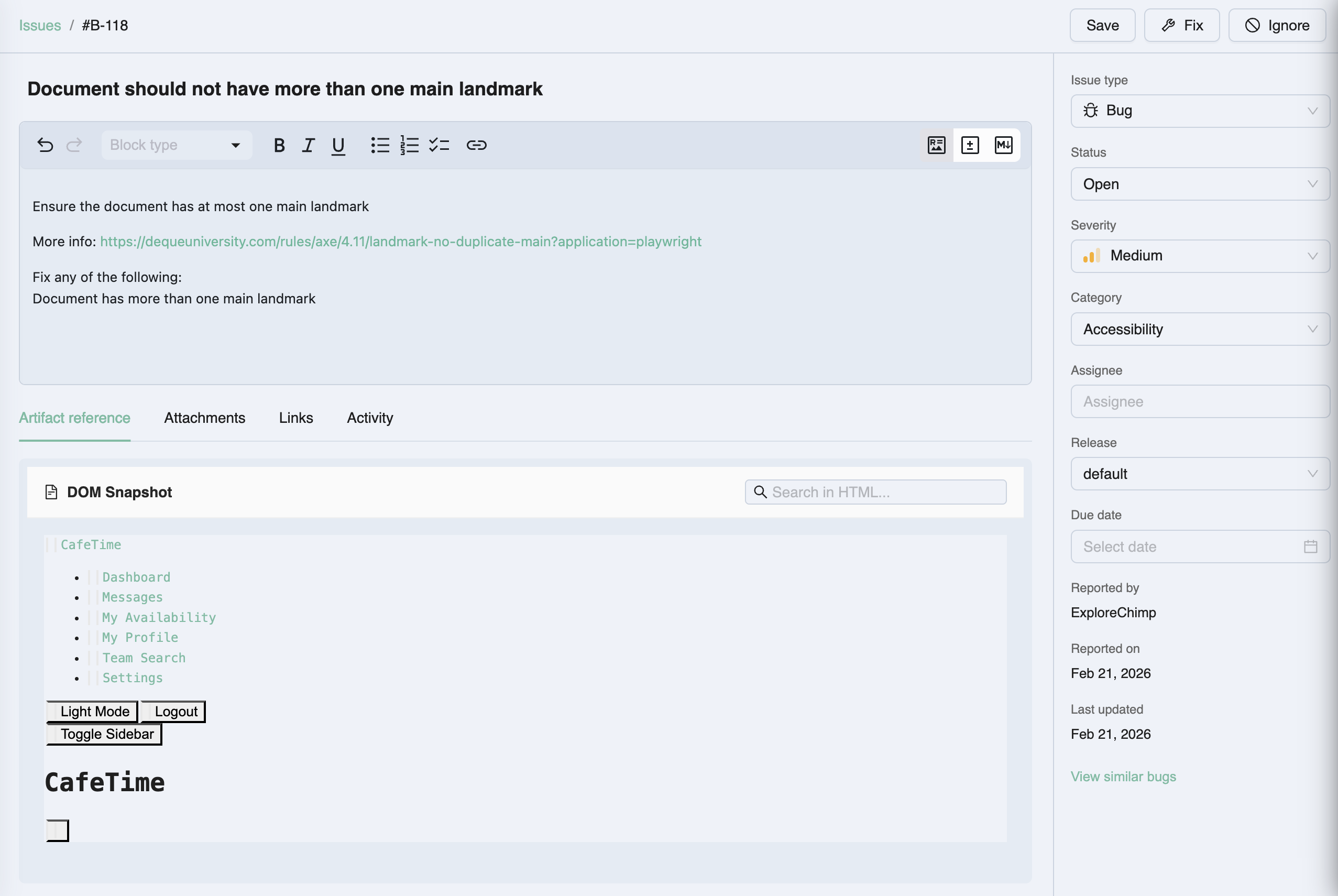
Layout
| Region | Contents |
|---|---|
| Top row | Breadcrumb back to Issues; Update (flush pending title/description); Fix where agent fix flows are enabled |
| Main column | Title, markdown description (scrollable fixed height), tabs |
| Sidebar | Issue type, status, severity, category, reported by, assignee, release, due date, reported on / last updated |
Sidebar dropdowns autosave on change. Title and description save on blur (focus-out); Update also flushes pending edits.
Issue types and metadata
| Field | Values / notes |
|---|---|
| Issue type | Bug, Suggestion, Observation |
| Status | Open, In Progress, Fixed, Ignored, Duplicate, Archived |
| Severity | Severity ladder used across triage and kanban color bars |
| Category | Single category from your bug taxonomy |
| Reported by | Human or agent (for example ExploreChimp) |
| Assignee | Team member |
| Release | Optional link to a release |
| Due date | Clearable date; autosaves like other sidebar fields |
| Reported on / Updated | Display-only timestamps |
Suggestions and observations let teams track non-defect quality work in the same backlog—closer to how Linear treats issue types, without leaving TestChimp.
Tabs
Artifact reference
For ExploreChimp (and other agent) issues that include a recorded artifact, the Artifact reference tab is the default. The artifact viewer shows the evidence used to identify the finding and highlights the relevant region—for example a bounding box on a screenshot, a DOM node, a network call, or a metric.
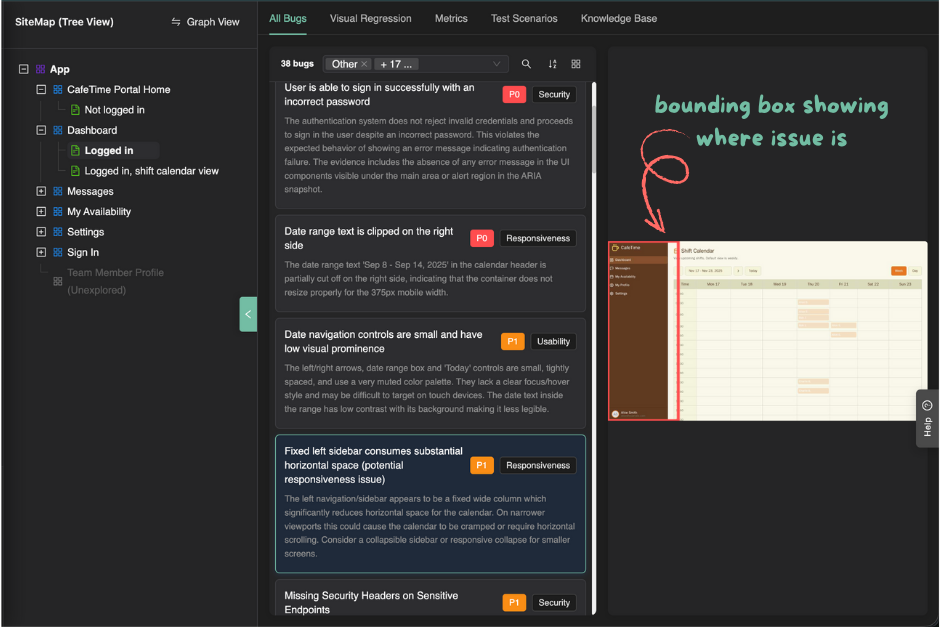
Use this tab to reproduce and fix without hunting for screenshots in chat. Related Atlas / screen-state behavior is covered under QA Intel bugs.
Attachments
Upload and manage additional files (images, text, downloads). Attachments appear as tags; select a tag to preview images or text, or download other types. Ideal for human evidence, logs, or design notes that complement the agent artifact.
When there is no agent artifact, Attachments is the default tab.
Links
Link the issue to the rest of your QA graph:
| Link target | Purpose |
|---|---|
| Stories | Requirement / user story in your plan |
| Scenarios | Test scenario under test |
| Tests | SmartTest / journey context |
| Issues | Related or duplicate defects |
| Other (external URL) | PR, design doc, customer ticket, Jira/Linear if still used elsewhere |
Links display as closable tags. Add … link opens a searchable picker (client-side title filter). ExploreChimp-created issues also populate journey/scenario links when available so triage starts already connected.
Activity
The Activity tab is the collaboration surface:
- Toggle Comments only vs Full activity
- Timeline (newest first) with actor avatar/name and relative time
- Metadata updates (status, assignee, due date, …) as labeled events
- Comments with Reply; replies are one level (thread under a top-level comment—no nested reply-to-reply)
- View replies expands the thread; Enter to submit a new reply
- Agentic actors show the TestChimp logo as the avatar
Creation may appear as a synthetic timeline entry from the issue’s reported-by / created metadata.
Use Activity the same way you would comment on a Jira ticket or Linear issue—without leaving the evidence page.
Collaboration workflow example
- Open an ExploreChimp finding from Issues or Atlas
- Review Artifact reference; confirm severity and type in the sidebar
- Link the owning story or scenario if not already filled
- Assign and set due date; status → In Progress
- Discuss reproduction in Activity; attach a HAR or extra screenshot under Attachments
- Land the fix; status → Fixed (optional Fix / agent PR flow)
Related documentation
- Issue management overview
- How issues get created
- List view and kanban
- ChimpHands one-click fixes
- ExploreChimp
Frequently asked questions
What is on the TestChimp issue page?
A full-page layout with editable title and markdown description, a metadata sidebar (type, status, severity, category, assignee, release, due date), and tabs for artifact reference, attachments, links, and activity.
What is the artifact viewer?
For agent-reported issues, the Artifact reference tab shows the captured evidence ExploreChimp used—highlighting the relevant screenshot region, DOM node, network call, or metric so developers can reproduce precisely.
How do comments and replies work?
In the Activity tab, add comments and reply one level deep under a comment. Toggle Comments only vs Full activity to include or hide metadata-change events. Replies are not nested recursively.
What can I link to an issue?
Stories, scenarios, tests, other issues, and external URLs. Links show as removable tags; add via searchable pickers. ExploreChimp often pre-links journeys and scenarios.
Do metadata edits save automatically?
Yes. Sidebar fields save on change. Title and description save on blur; the Update button also flushes pending title/description edits.
Evidence, discussion, and links on one page
Open any issue to review artifacts, comment with your team, and keep stories and tests linked—without copying context into a separate tracker.