List View and Kanban
Short answer
The Issues page is your triage board. Use the list for dense scanning and multi-column detail, or kanban for status workflow. Search by title, build an Add Filter stack (category, severity, screens, assignee, reported by, dates, status, release), see applied filters as tags, and click List Issues to refresh results. Create Issue sits beside List Issues so intake and triage stay on one surface.
Open Issues
From the main sidebar, open Issues. The default view is the list. Results reflect your project and any filters you last applied after clicking List Issues.
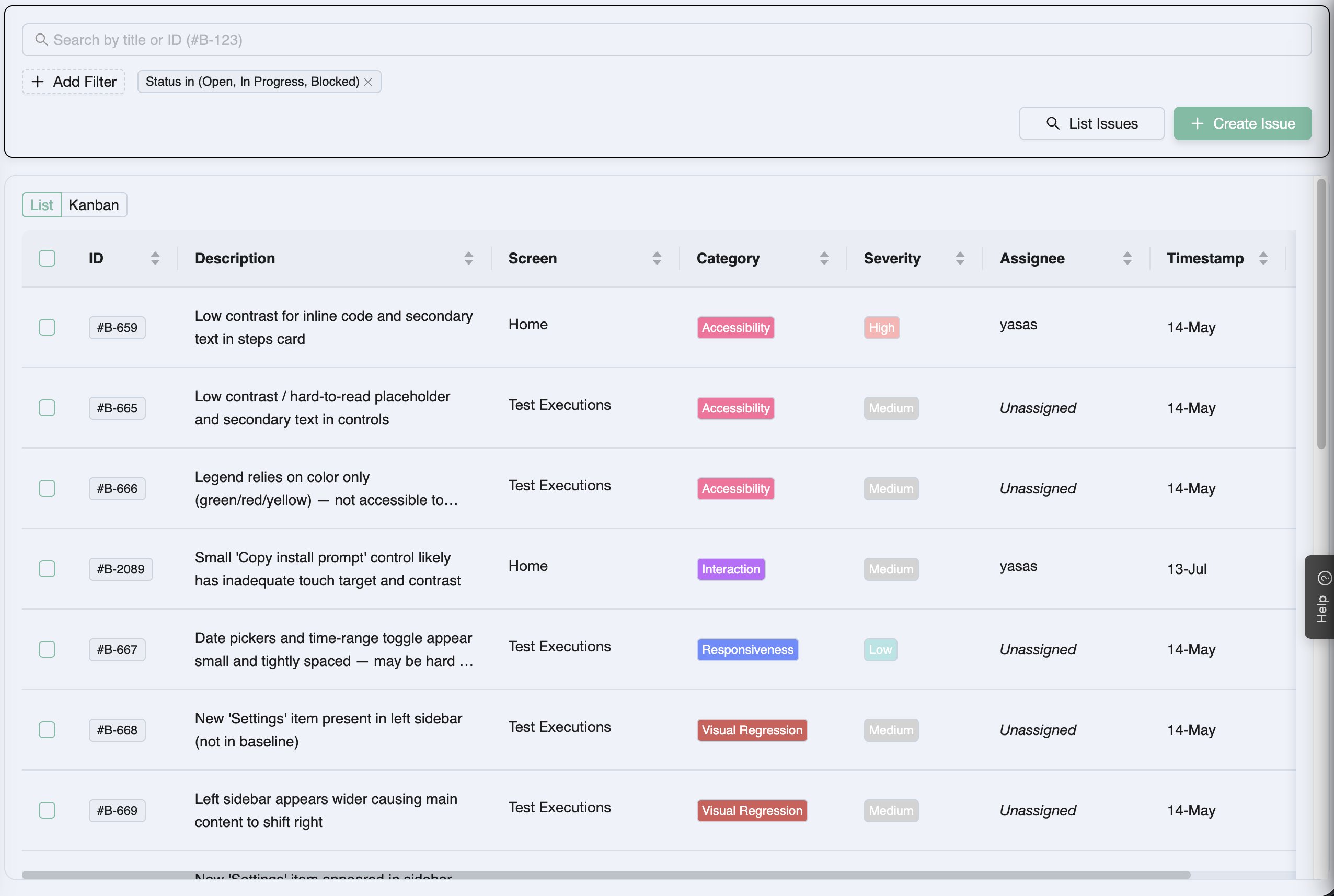
View modes: List and Kanban
Use the view control to flip between:
| Mode | Best for |
|---|---|
| List | Scanning many issues, sorting/skimming metadata in a dense table |
| Kanban | Moving work by status—drag cards across Open, In Progress, Fixed, and related columns |
Kanban columns follow issue status. Cards show severity with a color bar. Archived and Duplicate columns stay hidden by default so the board stays focused on active work.
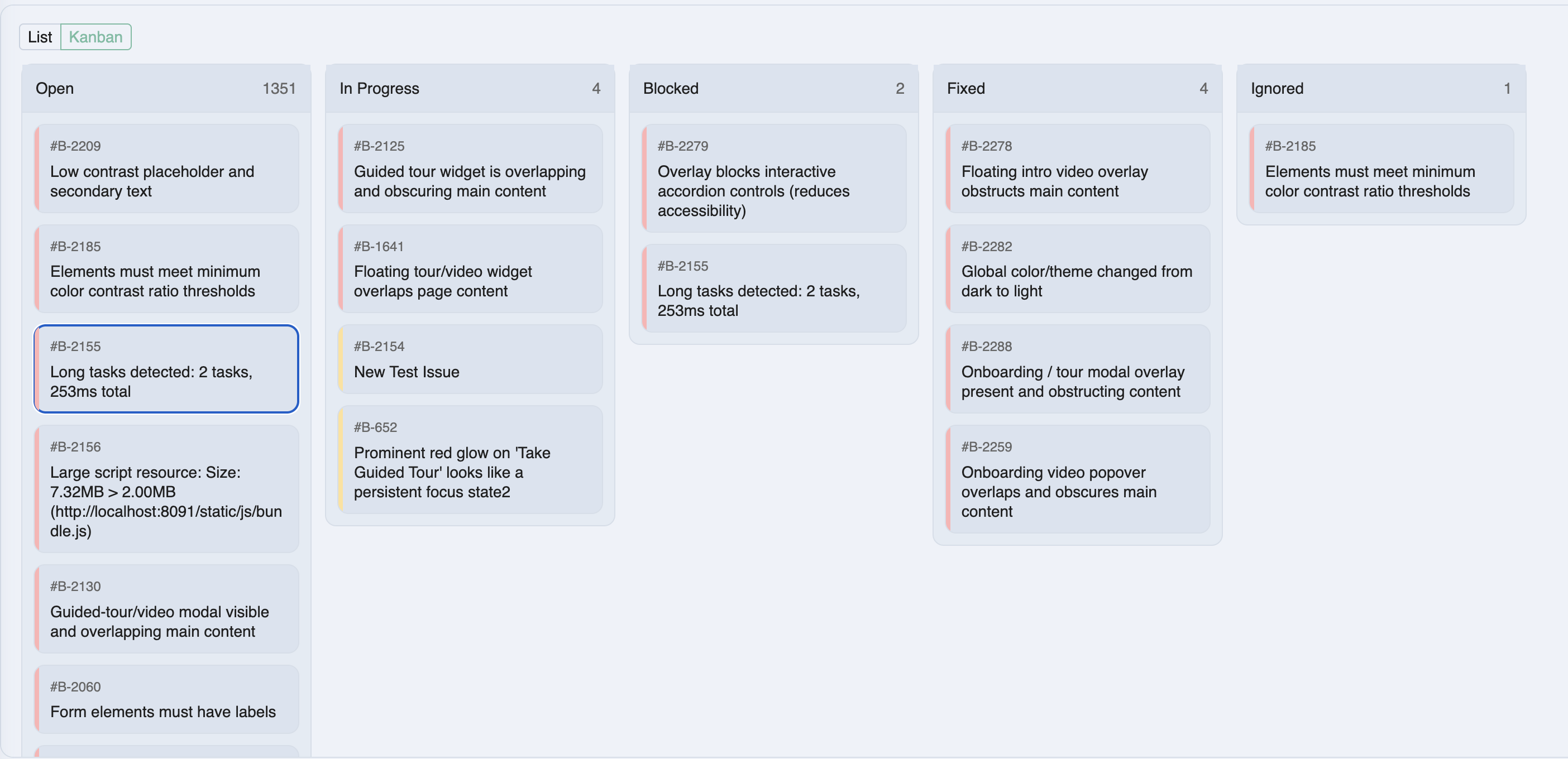
Updating status from kanban (or the issue sidebar) keeps list and board in sync—there is one underlying issue lifecycle.
Title search
A full-width title field filters by free-text match on the issue title. Combine it with the filter pane for precise triage (for example title contains “checkout” + severity Critical + status Open).
Advanced filtering
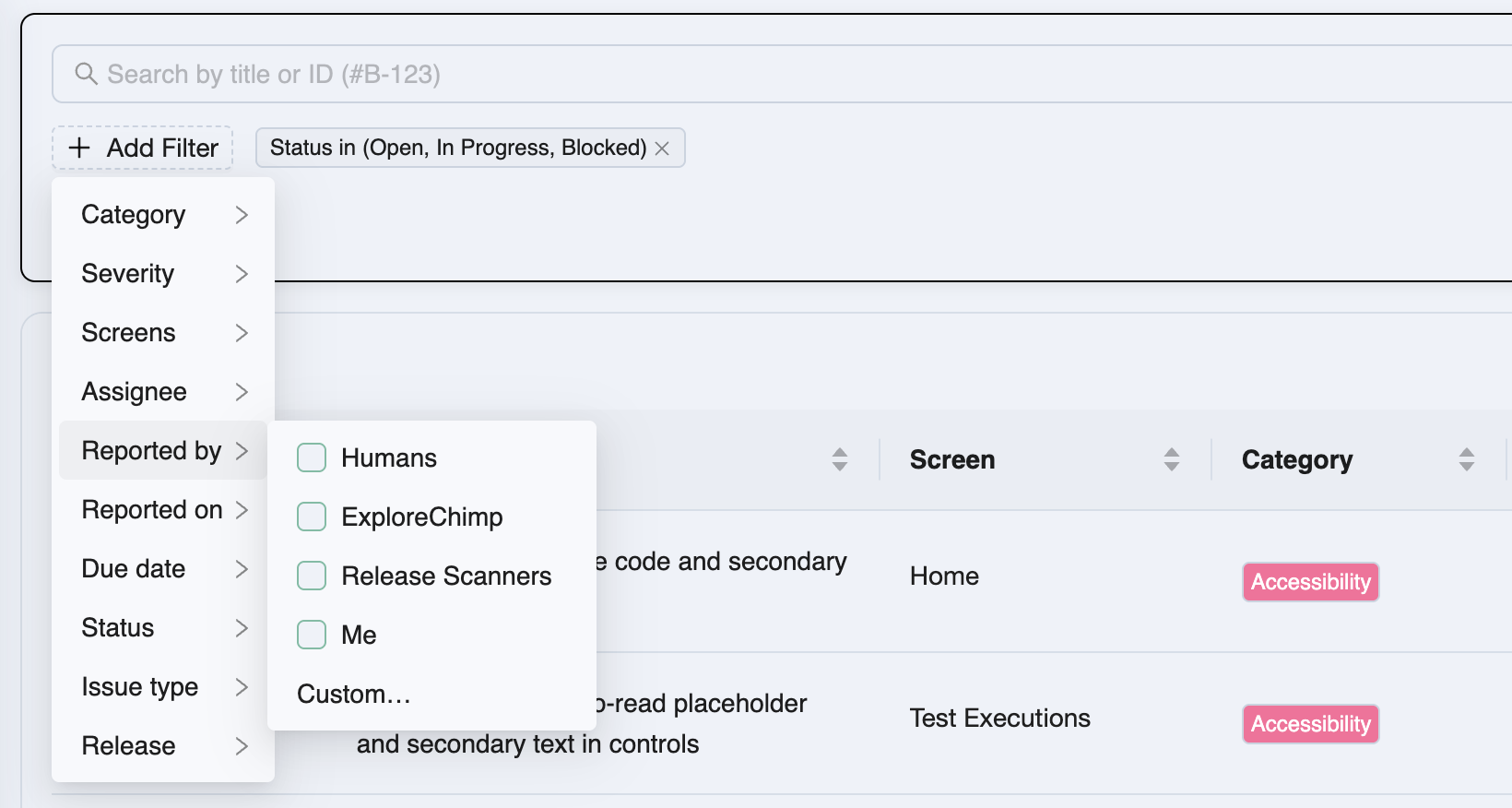
Click Add Filter to open a popover of filter dimensions. Most are multi-select; dates and release have structured presets.
| Filter | Behavior |
|---|---|
| Category | Bug category enum (single taxonomy used on the issue) |
| Severity | Multi-select severity levels |
| Screens | Limit to issues tagged to chosen screens / screen context |
| Assignee | Multi-select team members |
| Reported by | Human reporters and agents (for example ExploreChimp) |
| Reported on | Last week, last month, or custom date range |
| Due date | Overdue, due next week, due next month, or custom (after / before a date) |
| Status | Open, In Progress, Fixed, Ignored, Duplicate, Archived, … |
| Release | Latest releases as quick picks, or custom picker over all releases |
Applied filters appear as closable tags. Close a tag to remove that filter. After changing filters, click List Issues to fetch the matching set—nothing is applied until you list.
Typical triage recipes
| Goal | Filters to try |
|---|---|
| Agent debt this sprint | Reported by ExploreChimp + Status Open / In Progress + Due next week |
| Release gate defects | Release = current candidate + Severity High/Critical + not Fixed |
| Unowned backlog | Assignee empty / unassigned + Status Open |
| Aging filings | Reported on last month + Status Open |
Create Issue from triage
Create Issue next to List Issues opens a thin modal for title only. Confirm to create (defaults: Bug, medium severity, Open) and jump to the full-page issue view to finish metadata, description, links, and attachments.
That keeps “queue a follow-up” one click away from filtering—no separate project board.
From row or card to detail
Click a list row or kanban card to open the issue page. Breadcrumb navigation returns you to Issues; your filters remain available when you come back and re-list.
Related documentation
Frequently asked questions
How do I switch between list and kanban for Issues?
On the Issues page, use the List / Kanban view control. List is the default dense table; Kanban shows status columns with severity color bars on cards. Archived and Duplicate columns are hidden by default.
How do issue filters work?
Use the title field plus Add Filter for category, severity, screens, assignee, reported by, reported on, due date, status, and release. Applied filters show as closable tags. Click List Issues to apply and fetch results.
What due-date and release filter options exist?
Due date supports overdue, due next week, due next month, and a custom after/before picker. Release offers quick picks of recent releases plus a custom modal listing all releases.
How do I create an issue from the list?
Click Create Issue, enter a title, and confirm. You land on the full issue page to set type, severity, description, and other metadata.
Triage faster with list, kanban, and sharp filters
Filter by reporter, release, and due date—then flip to kanban to drag status until Fixed.