Release Management
Short answer
TestChimp release management answers one question before you deploy: has this version been tested enough, in the right places, with evidence we can audit? Releases group test runs (scoped validation campaigns), roll up manual session captures and automation batches, run release checks (UX and security scanners), and surface release intelligence—delta analytics, requirement coverage, ExploreChimp findings, TrueCoverage changes, and performance tests stamped from git SHA—so sign-off is based on data, not spreadsheets.
Why release management matters
Shipping fast only works when you can trust what was validated. Without release-level coordination, teams hit the same failure modes:
| Failure mode | What goes wrong | Release management response |
|---|---|---|
| Scattered evidence | Manual QA in Slack threads; CI green in another tab; no single view per version | One release rolls up every linked execution |
| Checkbox manual testing | "Mark as passed" with no steps, screenshots, or tester identity | Chrome extension capture records auditable sessions linked to test runs |
| Automation silos | CI batches exist but nobody ties them to the release candidate | Link automation batches to test runs on the release |
| Unknown scope | "We tested checkout" but not which scenarios or requirements | Focus areas and requirement coverage scoped to the release |
| Blind deploys | Code merged without knowing what plans, tests, or RUM events changed | Release intelligence compares this release to the prior one |
Release management is not bureaucracy—it is the shortest path to deploy confidence when product, QA, and engineering need a shared picture of readiness.
The TestChimp release model
In TestChimp, a release is a versioned milestone for your application (for example v2.4.0). Each release has:
| Element | Purpose |
|---|---|
| Version & metadata | Name, type, due date, git commit SHA, prior release, deployments per environment |
| Focus areas | Optional scope on your test plan—which story/scenario folders matter for this release |
| Test runs | One or more named validation campaigns attached to the release |
| Aggregated progress | Pass / fail / not attempted across scenarios, manual + automation |
| Release Checks | UX (ExploreChimp) and security scans (DAST, SAST, secrets, deps) on the ship candidate—see Release Checks |
| Release intelligence | Delta analytics, coverage, ExploreChimp, TrueCoverage—scoped to commits since the prior release |
| Performance tests | k6 load/volume runs auto-tagged from git SHA (run HEAD vs release cut SHAs)—p95, 4xx/5xx, overlays vs the prior version. See performance regression testing |
Open Releases from the main sidebar to see every release in the project.
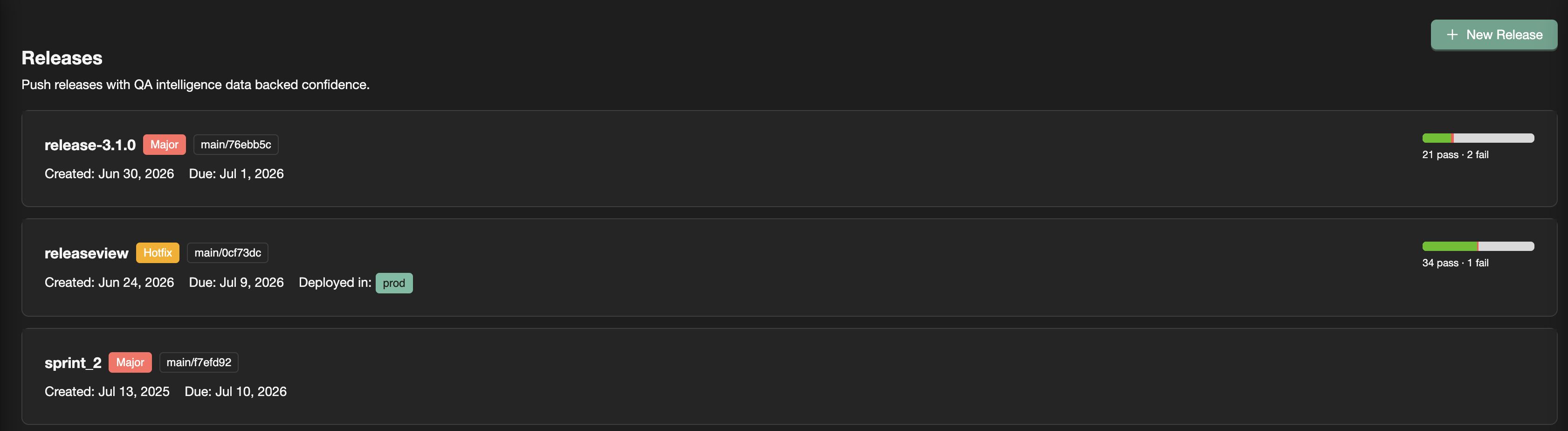
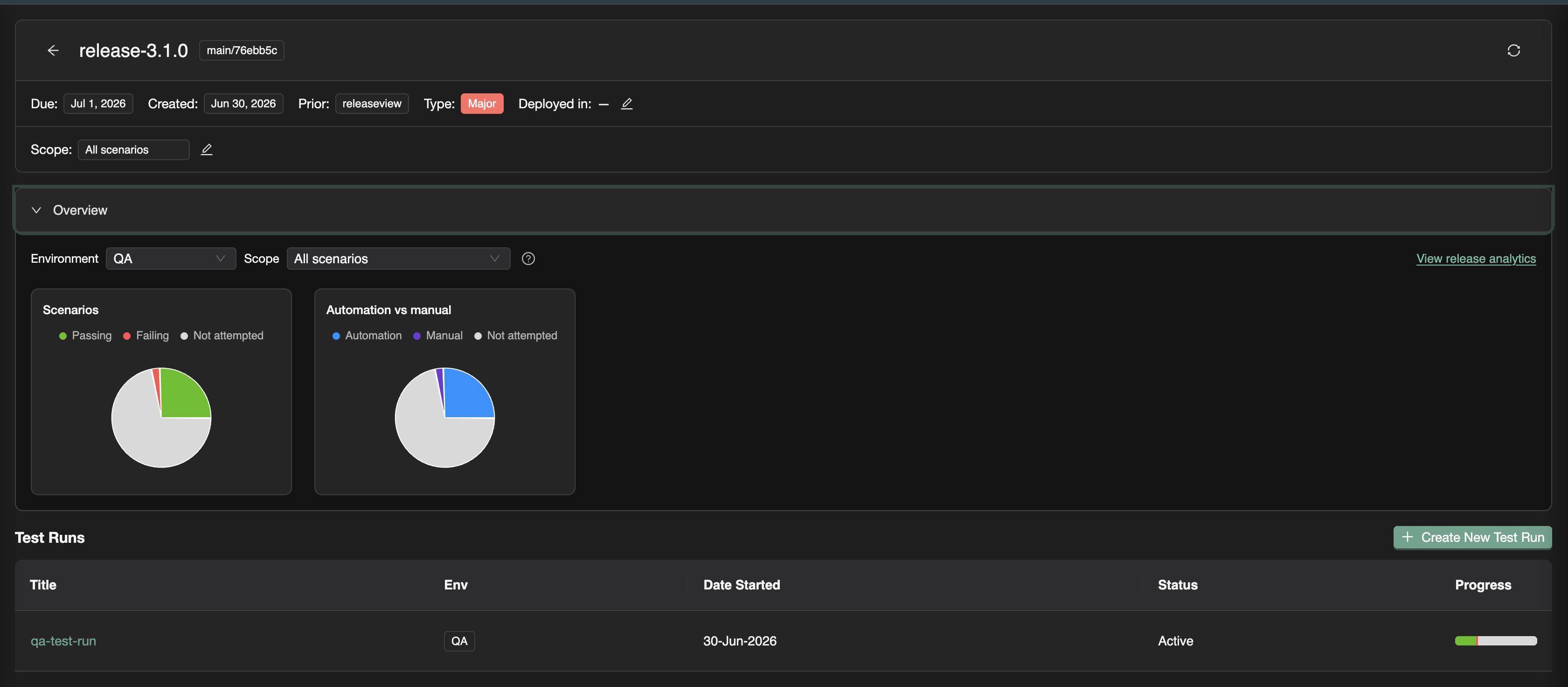
Click a release to open the release viewer: metadata, overview charts, and the test runs table. Use View release analytics (or navigate to the release analytics page) for deeper intelligence panels.
What is a test run?
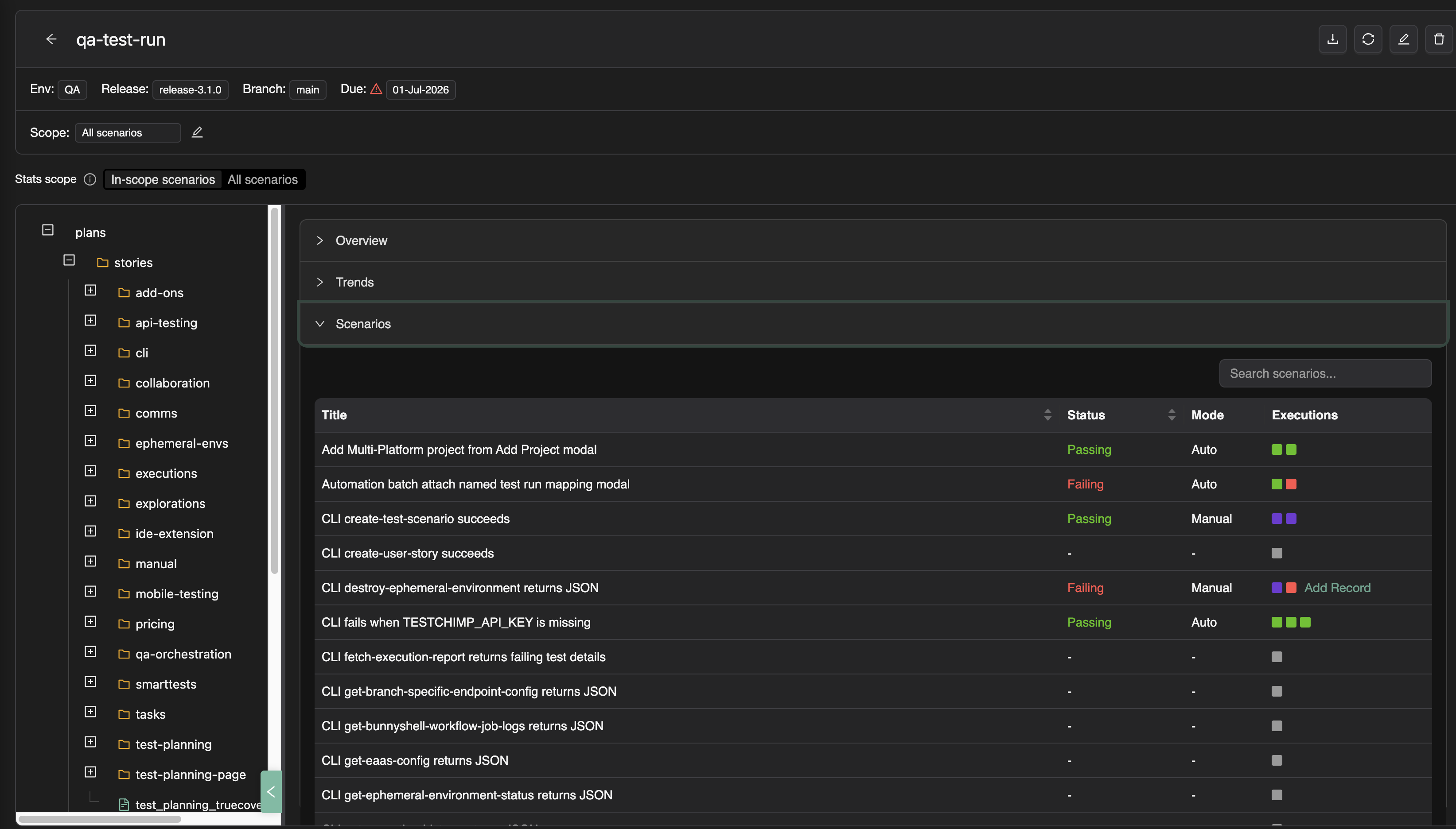
A test run is a named, scoped validation campaign—the same concept as a TestRail Test Run or Qase Run, but native to TestChimp's Git-backed plans and execution history.
A test run answers: "For this release (or sprint), which scenarios must we validate, and how far along are we?"
| Concept | In TestChimp |
|---|---|
| Scope | Selected folders/files from plans/stories and plans/scenarios |
| Executions | Linked automation batches and manual sessions (many-to-many) |
| Progress | Per-scenario Passing, Failing, or Not attempted (latest linked execution wins) |
| Lifecycle | Active → Completed or Archived |
| Release link | Optional but typical—test runs created from a release are pre-tagged with that version |
Test runs are the operational unit inside a release. A single release often has multiple test runs—for example "Smoke on staging", "Full regression", "Payment flows sign-off"—each with its own scope and collaborators.
For create/edit workflows, folder-scoped viewer tabs, trends, and PDF export, see the dedicated Test Runs guide. This section focuses on how test runs fit inside release management.
How TestChimp's solution works
Step 1 — Create or select a release
From Releases → New Release, set version, git commit, prior release, due date, deployments, and optional focus areas (plan folders in scope for this version). The commit SHA anchors delta analytics and candidate automation batches to the correct code range.
Step 2 — Define test runs on the release
On the release viewer, click Create New Test Run. The wizard pre-fills release version, branch, due date, and scope from the release focus areas. Add collaborators so assignees get email links to the run.
Step 3 — Attach execution evidence
- Manual: Testers use the Chrome extension to capture sessions and pick the active test run—steps, screenshots, and tester identity roll up automatically.
- Automation: CI publishes batches via the Playwright reporter; link batches from the release analytics Candidate Automation Execution Batches panel or from Executions → Automation Batches.
See Linking automation batches for the full workflow.
Step 4 — Run release checks
On the release viewer, open Release Checks and launch UX Checks and security scans (DAST, SAST, secrets, dependency). Agents execute the copied prompts; reports and bugs stay scoped to this version so the release page is the one-stop hub for ship-candidate QA.
Step 5 — Review release intelligence
Open View release analytics to inspect requirement coverage, delta analytics, ExploreChimp findings, and TrueCoverage changes. Use Refresh release data in the header after new commits, linked batches, or manual sessions.
Step 6 — Sign off with evidence
When overview metrics, coverage, and release checks match your bar—scoped to the right environment—mark test runs Completed and proceed with deployment. Stakeholders can open any scenario's execution history and drill into manual steps, CI traces, or scan reports without asking "who tested this?"
Release intelligence at a glance
TestChimp release intelligence (release analytics) goes beyond pass/fail counts. It connects what changed in code and plans since the prior release to what was tested and what exploratory work found.
| Insight | What it shows | Typical use |
|---|---|---|
| Overview | Scenario pass/fail/not attempted and automation vs manual mix | Daily standup, release readiness pulse |
| Requirement coverage | Stories and scenarios mapped to tests, filtered by linked executions | "Are we covering the right requirements?" |
| Release delta analytics | Tests, stories, scenarios added/updated/deleted + commit graph | Scope risk: what landed without a matching test plan change |
| ExploreChimp findings | Explorations, new screens/states, bugs in commit range | UX and exploratory risk before prod |
| TrueCoverage | RUM event definitions added/updated in the release range | Instrumentation drift—will prod vs test alignment break? |
Full detail on each panel, refresh behavior, and environment scoping: Release intelligence.
TestChimp vs TestRail (and traditional TMS)
TestRail and similar tools excel at manual test case libraries and test cycles in a standalone TMS. TestChimp targets teams that want plans and automation in Git with release-level intelligence in the same product.
| Dimension | TestRail-style TMS | TestChimp release management |
|---|---|---|
| Plan source | Cases in TestRail DB | Markdown stories/scenarios in Git |
| Manual result | Pass/fail checkbox on a case | Captured session: steps, screenshots, notes, bugs, tester |
| Automation link | External reference or plugin | scenario annotations in SmartTests + batch link to test run |
| Release view | Milestone + run summary | Release viewer + intelligence (delta, ExploreChimp, TrueCoverage) |
| Traceability | Case ID in TMS | Folder-scoped coverage tied to repo structure |
| PR workflow | Weak | /testchimp test per PR; batches flow into release |
TestChimp does not ask you to duplicate a TestRail library forever—import scenarios during migration, then let Git be the source of truth. See TestChimp vs TestRail for an honest capability comparison.
Where TestRail is still a fit: enterprise TMS mandates, QA orgs that will never adopt in-repo automation, or compliance workflows built entirely around TestRail IDs.
Where TestChimp release management wins: fast-moving product teams that ship from Git, run Playwright in CI, need auditable manual evidence, and want one release dashboard instead of stitching TMS + CI + spreadsheets.
Releases vs admin settings
Older docs described releases only under Settings → Project Settings → Releases (current-release tagging for bugs). The Releases sidebar is the primary surface for release management—catalog, viewer, test runs, and analytics.
Admin settings remain useful for environment lists and legacy "current release" defaults used by explorations. For the full release workflow, start here and on Release intelligence.
Related documentation
- Release Checks — UX and security scanners on the ship candidate
- DAST · SAST · Secrets · Dependency scan · UX Checks
- Release intelligence — Delta analytics, coverage, ExploreChimp, TrueCoverage
- Manual sessions to test runs — Chrome extension workflow
- Linking automation batches — CI batches on a release
- Test Runs — Create, scope, trends, lifecycle
- Requirement traceability — Folder-level coverage model
- Manual test capture — Extension capture mechanics
- Run SmartTests in CI — Automation batches from Playwright
Frequently asked questions
What is release management in TestChimp?
Release management is the workflow for validating a specific application version before deploy. You create a release (version + git commit + optional plan scope), attach test runs, link manual session captures and CI automation batches, run release checks (UX and security scanners), and use release intelligence—coverage, delta analytics, ExploreChimp, TrueCoverage—to decide when to ship.
What is the difference between a release and a test run?
A release is the version milestone (e.g. v2.4.0) with metadata, focus areas, and rolled-up intelligence. A test run is a scoped validation campaign inside that release—selected scenario folders, collaborators, due date, and linked executions. One release typically has multiple test runs.
What are release checks?
Release Checks are UX and security activities launched from the release detail page—ExploreChimp UX Checks plus DAST, SAST, secrets, and dependency scans. Reports and bugs stay scoped to the ship candidate next to test runs. See the Release Checks guide for how to run each scanner.
How is TestChimp release management different from TestRail?
TestRail stores cases and runs in a TMS UI with checkbox manual results. TestChimp keeps plans in Git, links Playwright via scenario annotations, captures manual work as auditable browser sessions, runs release-scoped security and UX checks, and surfaces release-level intelligence (commit deltas, ExploreChimp, TrueCoverage)—not just pass/fail counts.
Do manual test results need to be linked to a test run?
For results to count in release overview and requirement coverage aggregates, manual sessions should be linked to an active test run on that release—easiest at capture time in the Chrome extension. Unlinked sessions remain in execution history but do not roll up to release progress.
How do I know when a release is ready to ship?
Review release overview metrics for your target environment, requirement coverage for focus areas, delta analytics for untested plan changes, release check reports and bugs, and any ExploreChimp or TrueCoverage warnings. When scoped scenarios show acceptable pass rates with evidence attached, complete the test runs and proceed with deployment.
Where do I create a release?
Open Releases in the main sidebar, click New Release, and set version, commit SHA, prior release, deployments, and optional focus areas. Create test runs from the release viewer or link existing CI batches and manual sessions from the analytics panels.
Ship releases with evidence, not checkboxes
Create a release, add test runs, capture manual sessions, and run release checks—release intelligence shows the full picture before deploy.