Manual Sessions Linked to Test Runs
Short answer
Traditional test management tools let testers click Pass or Fail on a case—that records an outcome, not evidence. TestChimp supports two paths: the Chrome extension captures full browser sessions (steps, screenshots, bugs), or testers add records directly in the test run viewer—quick pass/fail or Add with details including notes and file attachments. Link results to an active test run on your release and they roll into release overview and requirement coverage. Release git commit cut points anchor delta analytics so you see what changed—and what was explored or found—between versions.
Why auditable manual testing matters
| Approach | Traceability | Release rollup |
|---|---|---|
| "Mark as passed" in TMS | Outcome only; no steps or proof | Manual count in a dashboard |
| Spreadsheet / Slack | Hard to audit; lost after ship | Not linked to requirements |
| TestChimp manual capture → test run | Full session with steps, screenshots, tester | Automatic scenario status on the release |
For regulated domains, customer sign-off, or simply debugging production issues, "QA said pass" is not enough—you need reproducible evidence tied to the scenario and release version.
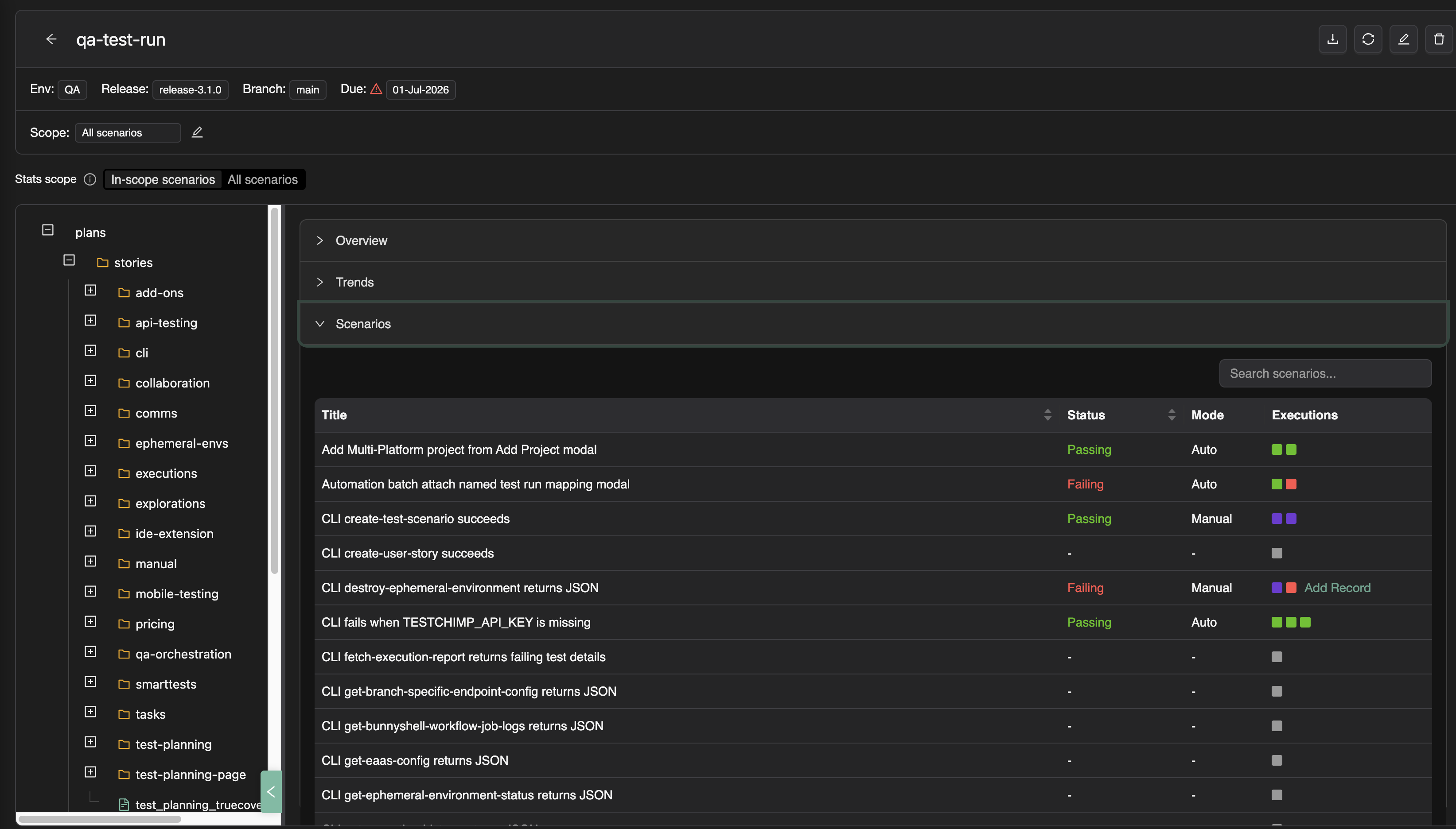
Two ways to add manual results
| Path | Best for | Evidence level |
|---|---|---|
| Chrome extension capture | Full UI regression, exploratory work with steps | Highest—every interaction, screenshot, note, bug |
| Test run viewer — Add Record | Quick sign-off, backend-only checks, adding proof after the fact | Quick pass/fail, or notes + attachments via Add with details |
Both create a manual session record linked to the scenario and test run. Multiple records per scenario are supported—execution history shows every run as colored squares in the Executions column.
Capture workflow (extension)
1. Open the extension
In the extension sidebar, click Create Manual Test Record.
2. Choose capture mode
| Mode | Use when |
|---|---|
| Test a scenario | Executing a planned scenario—required for coverage rollup |
| Open-ended | Exploratory work labeled by objective; no scenario link |
For release management, prefer Test a scenario so the session updates the correct row in the test run viewer.
3. Select scenario and branch
Search and select the scenario you are executing. Optionally pick git branch context if your project uses branch-aware execution.
4. Select the test run (key step)
Open the Test run dropdown. Only active runs appear, grouped as:
- Assigned to me — runs where you are a collaborator
- Other — remaining active runs on the project
Pick the run tied to your release validation campaign (for example "v2.4.0 Staging regression"). The session will be linked automatically when capture ends—no post-hoc linking required.
If you skip test run selection, the session is still stored but does not count toward release overview aggregates until linked from Executions → Manual Sessions.
5. Start capture and test
Click Start Capture. The sidebar collapses so you interact with the application normally. Each interaction becomes a step with an automatic screenshot.
6. Annotate during capture (optional)
On the latest step you can:
- Add note — text plus optional element/area highlight on the screenshot
- Add bug — title, severity, screen/state, assignee; created in TestChimp when the session ends
7. End capture with outcome
Click End capture → Mark as passed or Mark as failed. The extension uploads screenshots and creates the manual execution record linked to your scenario and test run.
Click View execution to open the session in TestChimp.
When to prefer extension capture
- Validating test scenarios during a release test run with full UI steps
- Exploratory testing where you want bugs with step screenshots
- Distributed testers who work in the browser and should not learn the full web UI
For open-ended exploratory work without a scenario link, you can still capture sessions—they appear in execution history but do not update scenario coverage until linked to a scenario.
Extension prerequisites
- Install and sign in to the TestChimp Chrome extension
- An active test run on the target release (create from the release viewer or Test Runs list)
- Set environment and release in the extension header so metadata matches the deployment under test
Add records from the test run viewer
You do not need the extension to report manual results on a test run. Open the test run viewer (from the release or Test Runs list), go to the Scenarios tab, and use Add Record in the Executions column for any scenario—whether or not prior executions exist.
The Add Record menu offers three options:
| Option | What it does |
|---|---|
| Quick: Mark as Passing | Creates a minimal manual session with a synthetic step ("Marked as passing") and links it to the test run |
| Quick: Mark as Failing | Same as above, with a failing outcome |
| Add with details | Opens a modal for pass/fail, optional notes, and optional file attachments |
Quick actions are for fast updates when you already know the outcome and do not need step-by-step capture—for example a backend API check or a scenario verified in another tool.
Add with details: notes and attachments
Choose Add with details when you need lightweight evidence without a full extension session:
- Toggle Passing or Failing
- Optionally enter notes—stored on the synthetic "Marked as…" step for that record
- Optionally select files to attach (images, logs, exports, and so on)
- Click Add record
The record appears in execution history like any other manual session. Open it from the history squares to review notes and attachments.
In the manual session viewer, attachments appear as tags in the metadata row. You can:
- Click a tag to preview images and text files (
.md,.txt,.html,.log) inline, or download other formats - Add more attachments after the fact via the add-attachment control
- Remove attachments with confirmation
This gives auditors a paper trail even when nobody ran the Chrome extension—notes plus files such as HAR exports, CSV extracts, or screenshots taken outside TestChimp.
What gets recorded (extension vs web UI)
Extension capture
| Field | Source |
|---|---|
| Tester | Signed-in extension user |
| Steps | Captured interactions with timestamps |
| Screenshots | Per step (prioritized for steps with notes/bugs) |
| Scenario | Selected scenario id (scenario mode) |
| Test run | Selected active test run |
| Environment / release | Extension header settings |
| Branch | Selected git branch |
| Outcome | Pass or fail at end of capture |
| Notes and bugs | Attached per step |
Web UI quick or detailed record
| Field | Quick mark | Add with details |
|---|---|---|
| Tester | Signed-in web user | Signed-in web user |
| Outcome | Pass or fail | Pass or fail (toggle) |
| Steps | Single synthetic "Marked as…" step | Synthetic step with optional note |
| Attachments | — | Uploaded files stored on the session |
| Test run | Current test run (implicit) | Current test run (implicit) |
In the test run viewer, each scenario row shows Execution history squares—click to open any session. Release overview treats the latest linked execution per scenario as the current status.
Linking after capture (web UI)
If capture happened without a test run selected:
- Open Executions → Manual Sessions
- Use Link to test runs on the row or from the session viewer
- Select one or more active test runs (filter by branch, environment, release)
The same modal works for automation batches—see linking automation batches.
Release git commits and delta analytics
Manual results are one input to release confidence. Release intelligence also answers: what changed in the product between this release and the last one—and what happened while that code was in flight?
That story starts with git commit cut points on each release.
Anchoring a release to a commit
When you create or edit a release, set:
| Field | Role |
|---|---|
| Git commit SHA | The release cut—the exact revision this version represents |
| Prior release | The previous milestone on the same branch lineage |
| Branch | Branch context for compare and commit graph |
The prior release's commit is the start of the range; the current release's commit is the end. Together they define the window TestChimp uses for delta analytics.
What carries a git commit
TestChimp records when work happened in git terms. Activities tied to a commit (or commit range) include:
| Activity | How commit scope applies |
|---|---|
| Plan changes | Git diffs on plans/stories, plans/scenarios, plans/events between prior and current SHA |
| SmartTests added/updated | Test file changes in the same range—surfaced in Release delta analytics |
| ExploreChimp explorations | Runs associated with commits between the two release cuts |
| Bugs from exploration | Filtered by commit range and environment on the release analytics page |
| New screens / states | Atlas discoveries in the commit range |
| TrueCoverage events | .event.md definitions added or updated between cuts |
| Automation batches | Candidate batches whose execution window falls between release commits |
Manual sessions and test runs roll up scenario status on the release. Delta panels answer a complementary question: what changed in the repo and exploratory surface area while you were validating this candidate.
Refresh to recompute
Click Refresh release data on the release header after updating the commit SHA, merging plan changes, or completing a heavy testing day. That recomputes delta analytics, ExploreChimp stats, and TrueCoverage changes for the prior → current commit range. See Release intelligence for each panel.
Practice: set the release commit SHA to match your actual ship candidate (staging tag, release branch HEAD, or production deploy revision). Set prior release to the last shipped version. Delta analytics then show exactly what landed—and what was explored or instrumented—since you last released.
Contrast with TestRail manual runs
| TestRail | TestChimp |
|---|---|
| Tester opens case, clicks Pass/Fail | Extension capture or Quick mark / Add with details in test run viewer |
| Optional text result field | Notes + file attachments on detailed records; full steps via extension |
| Case ID in TMS | Scenario from Git plan + execution linked to release |
| Milestone summary only | Milestone + commit-scoped delta analytics (plans, tests, ExploreChimp, TrueCoverage) |
| Separate from automation | Manual and CI share test run progress bars |
Tips for release managers
- Create test runs per environment (Staging regression vs Production smoke) so testers pick the right run from the dropdown
- Add collaborators on the test run so assignees see their runs under Assigned to me
- Tell testers to set extension release to match the release viewer version
- Use Refresh stats on the test run and Refresh release data on the release after heavy manual days
Related documentation
- Manual test capture (extension reference)
- Test runs
- Release management overview
- Release intelligence
Frequently asked questions
How do I add a manual test result without the Chrome extension?
Open the test run viewer, Scenarios tab, and click Add Record on a scenario row. Use Quick: Mark as Passing/Failing for a one-click result, or Add with details to include notes and file attachments. Both create a manual session linked to the test run.
How do I link a manual test session to a test run?
In the Chrome extension, select an active test run from the dropdown before Start Capture—linking is automatic when the session ends. From the web UI, Add Record on a test run links directly. For existing sessions, use Link to test runs from Executions → Manual Sessions.
Can I add notes and attachments to a manual record without capturing steps?
Yes. In the test run viewer, choose Add Record → Add with details. Enter optional notes and upload files. They attach to the synthetic step for that record and appear in the manual session viewer, where you can preview, download, add, or remove attachments later.
How do release git commits enable delta analytics?
Each release has a git commit SHA (the cut) and a prior release. TestChimp compares commits between those points to surface plan changes, SmartTest diffs, ExploreChimp activity, bugs, new screens/states, TrueCoverage event changes, and candidate CI batches. Refresh release data after updating the commit SHA to recompute.
Why use extension capture instead of Quick mark?
Extension capture records every UI step and screenshot plus in-flow notes and bugs—best for auditable regression. Quick mark and Add with details suit fast sign-off or backend checks when you only need an outcome, a short note, or a few files.
Do manual sessions without a test run count toward release progress?
No. Release overview and requirement coverage count manual results linked to a named test run on that release. Unlinked sessions remain in execution history until you link them via the mapping modal.
Manual evidence on every release test run
Capture in the browser with the extension, or add quick and detailed records from the test run viewer—then review commit-scoped delta analytics before you ship.