Release Checks
Short answer
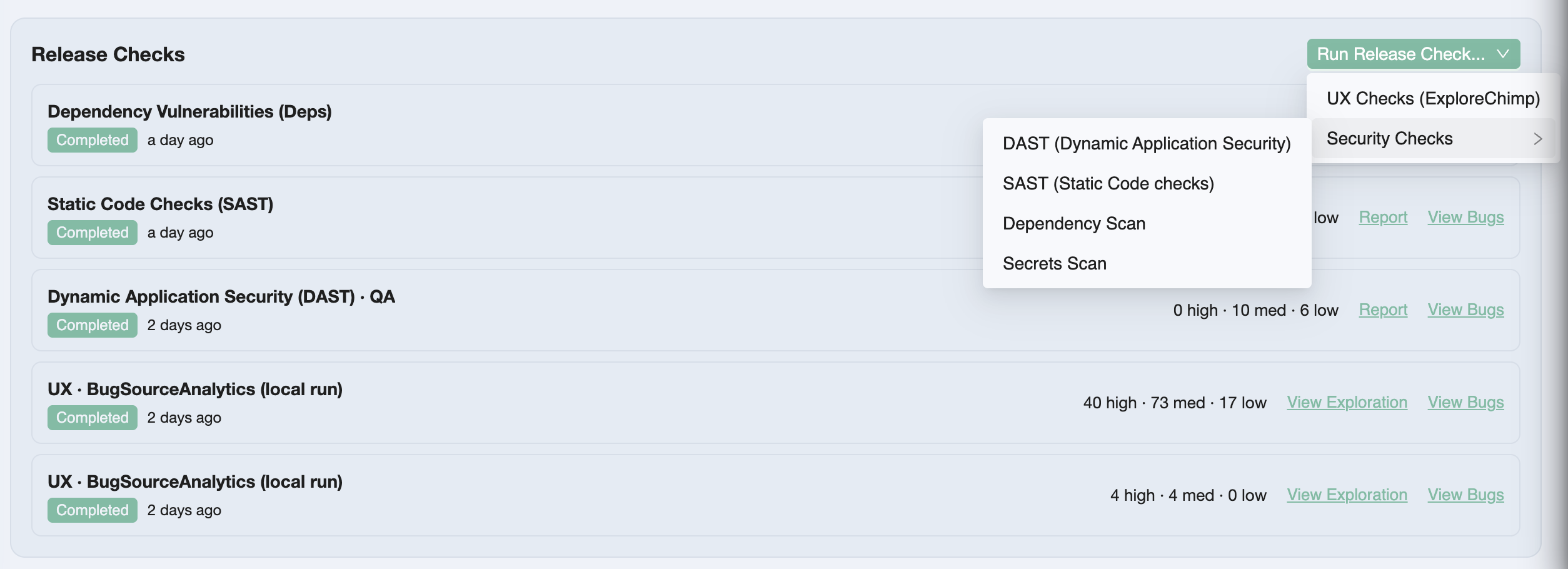
Release Checks are QA activities you launch from a release detail page: UX Checks (ExploreChimp on the release delta) and security scans (DAST, SAST, secrets, dependency). Each check is scoped to that ship candidate—status, severity counts, scanner reports, and filed bugs live next to test runs and release intelligence, so the release page is the one-stop view for QA activity on the version.
Why run checks on the release
Test runs and CI batches show scenario pass/fail. Release Checks answer adjacent ship questions:
| Question | Check |
|---|---|
| Did UX regress on paths this release touched? | UX Checks |
| Are there runtime web vulns on flows we cover? | DAST |
| Did this release introduce insecure code patterns? | SAST |
| Were secrets committed in the release range? | Secrets scan |
| Did dependency changes add known CVEs? | Dependency scan |
Findings become issues scoped to the check. Security checks also store a typed report you can open from the list. That keeps security and exploratory QA on the same release surface as manual evidence and automation—not in a separate tool silo.
Supported checks
| Check | Engine | Typical use |
|---|---|---|
| UX Checks (ExploreChimp) | ExploreChimp on SmartTests | Perf, layout, a11y, console/network issues on release-covered journeys |
| DAST | OWASP ZAP | Passive (optional active) scan via proxied UI automation |
| SAST | Semgrep | Static security findings; release-scoped vs baseline |
| Secrets scan | Gitleaks | Credentials leaked in git history or since baseline |
| Dependency scan | Trivy | CVEs in manifests/lockfiles; new vulns vs baseline |
Each security scan is one scanner type—run DAST and SAST as separate checks if you need both.
How to run a release check
-
Open Releases → select the version → scroll to Release Checks (below Test Runs).
-
Click Run Release Check… and pick a check type.
-
UX Checks: copy the prompt from the modal into your TestChimp-upskilled agent (e.g. Cursor / Claude with the TestChimp skill).
-
Security checks: configure knobs in the wizard → Next. TestChimp creates a queued scan and shows a prompt such as:
/testchimp run security scan for <scan_id>Paste that into the agent. The agent installs/runs the scanner locally, uploads the report, and marks the scan completed (or exception).
-
Watch the Release Checks list: status moves Queued → In progress → Completed (or Exception). Severity counts refresh while scans are active.
-
When complete, use Report (security) and View Bugs to triage.
Creating a security scan only queues it. Nothing executes until an agent runs the /testchimp run security scan… prompt with the required tooling (ZAP, Semgrep, Gitleaks, or Trivy) available on that machine.
What you see on the list
Each row shows check type and title, status, relative time, and severity counts (critical / high / medium / low) when findings exist.
| Action | When |
|---|---|
| Copy prompt | Queued or in-progress security scans—re-copy the agent run command |
| Report | Completed security scan—open the typed JSON report viewer |
| View Bugs | Security → Issues filtered to that scan; UX → exploration / Atlas bugs |
| View Exploration | UX checks—open the ExploreChimp exploration |
Together with test runs, manual sessions, linked automation batches, and release intelligence, this is the full QA picture for the candidate on one page.
Prerequisites
| Need | Why |
|---|---|
| Release with git commit (and prior release when using release-scoped modes) | Baselines and release-delta selection for SAST, secrets, deps, UX, and DAST RELEASE_SCOPE |
| TestChimp skill / CLI on the agent machine | Orchestrates get-config → scan → report-findings |
| Scanner binaries (per check) | ZAP, Semgrep, Gitleaks, or Trivy as required |
| Environment defined (DAST) | Target URL / tag for the dynamic scan |
| Bunnyshell + GitHub (optional) | Only for DAST ephemeral sandbox with active scan |
Related documentation
- DAST (Dynamic Application Security)
- SAST (Static Code Checks)
- Secrets scan
- Dependency scan
- UX Checks
- Release management overview
- Release intelligence
- How issues get created
- Bunnyshell DAST sandbox
Frequently asked questions
What are release checks in TestChimp?
Release checks are QA activities launched from a release detail page: UX Checks with ExploreChimp, and security scans for DAST (ZAP), SAST (Semgrep), secrets (Gitleaks), and dependencies (Trivy). Status, reports, and bugs stay scoped to that ship candidate next to test runs and release intelligence.
How do I run a release check?
Open the release, click Run Release Check, choose UX or a security scanner, and configure options if prompted. For security scans, TestChimp queues the scan and shows a /testchimp run security scan for scan_id prompt. Paste that into a TestChimp-upskilled agent; the agent runs the scanner and uploads findings.
Why use the release page for security and UX checks?
The release detail page already holds test runs, manual evidence, automation batches, and release intelligence. Release Checks add exploratory UX and security scanners on the same version so ship decisions and triage happen in one place instead of stitching CI security tabs, spreadsheets, and chat threads.
Do release checks run in the cloud automatically?
No. Creating a security check queues it in TestChimp. An agent on a machine with the TestChimp skill and the scanner tooling executes /testchimp run security scan for the scan id, then reports results back. UX checks similarly use an ExploreChimp agent prompt targeting the release.
What happens to findings from release checks?
Security findings are stored in a typed report you can open from the list, and non-filtered issues are filed as bugs scoped to the scan. UX check findings surface as ExploreChimp issues you can open via View Bugs or View Exploration. Duplicate hashes are skipped project-wide for security bugs.
Can I run DAST and SAST in one check?
No. Each security scan is a single scanner type. Start separate Release Checks for DAST, SAST, secrets, and dependency scanning as needed for the release.
Make the release page your QA command center
Queue UX and security checks on the ship candidate, run them with your agent, and triage reports and bugs beside test runs—before you deploy.