Create SmartTests from the Browser
In brief: Capture a manual session in the extension, then use Copy test generate prompt so your TestChimp-skilled agent authors the SmartTest in Git.
The extension no longer includes a separate Script Gen tab. SmartTest authoring from the browser follows one path: manual session capture → test generate prompt → agent.
Overview
- Capture — Record steps in a manual test session (scenario-linked or open-ended).
- Prompt — Open the session in TestChimp and click Copy test generate prompt.
- Author — Paste into Claude or Cursor with the TestChimp skill; the agent fetches session details and writes Playwright in your repo.
The capture itself also creates auditable manual execution evidence (pass/fail, screenshots, notes, optional bugs).
Capture the session
- Install the Chrome extension and sign in with your TestChimp account.
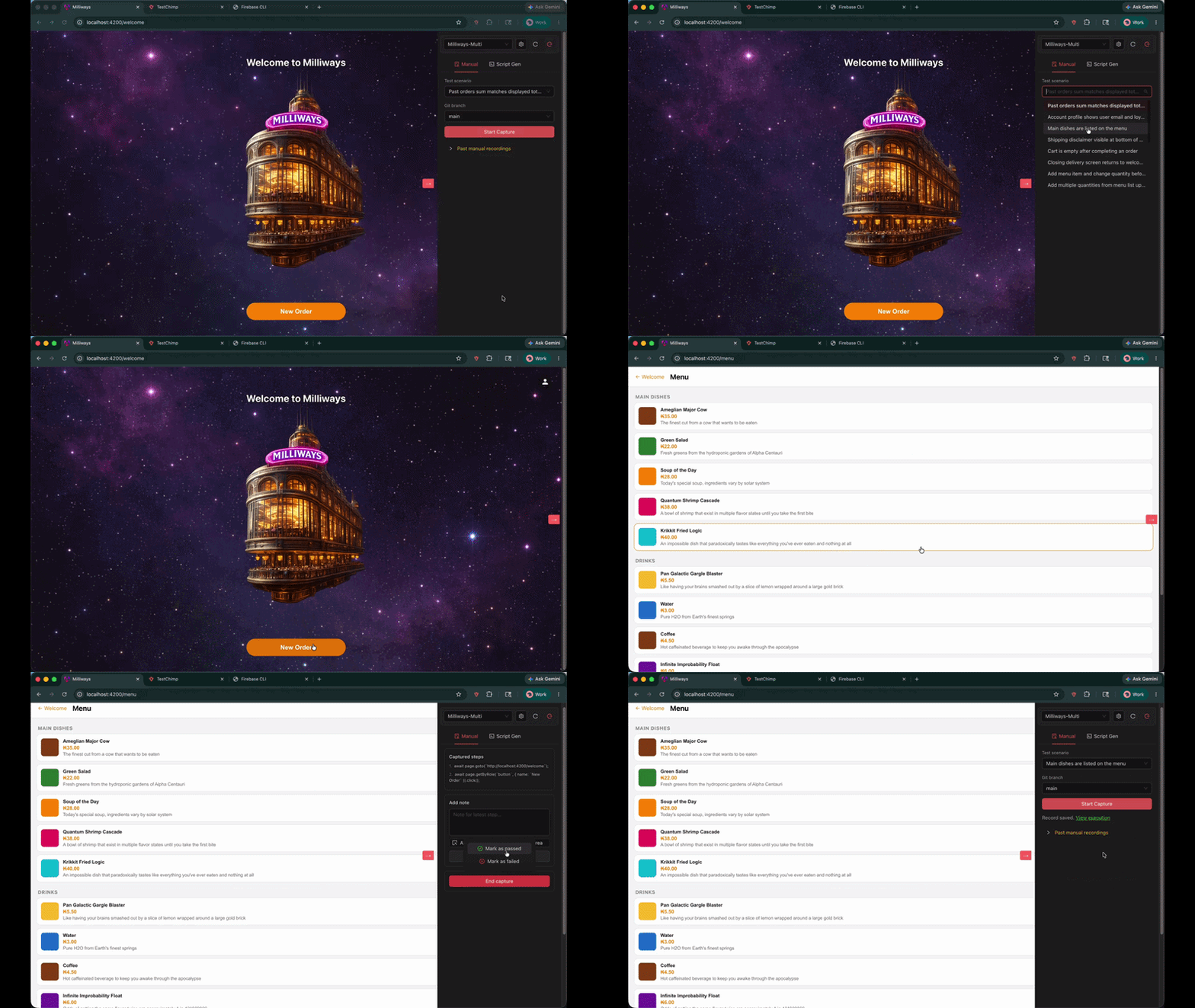
- Start from Test Planning when you want scenario traceability (recommended):
- Open a scenario → Create Test → Record manual test steps
- Go to your webapp and open the extension — the project and scenario are pre-selected (handoff is valid for about three minutes)
- Click Create Manual Test Record, set environment and release, then Start Capture.
- Perform your test steps in the app. Steps and screenshots are captured as you go; add notes or bugs on steps when useful.
- Click End capture and mark the session passed or failed.
Full capture options (open-ended sessions, test-run linking, step annotations): Manual test session capture.
Author the SmartTest from the session
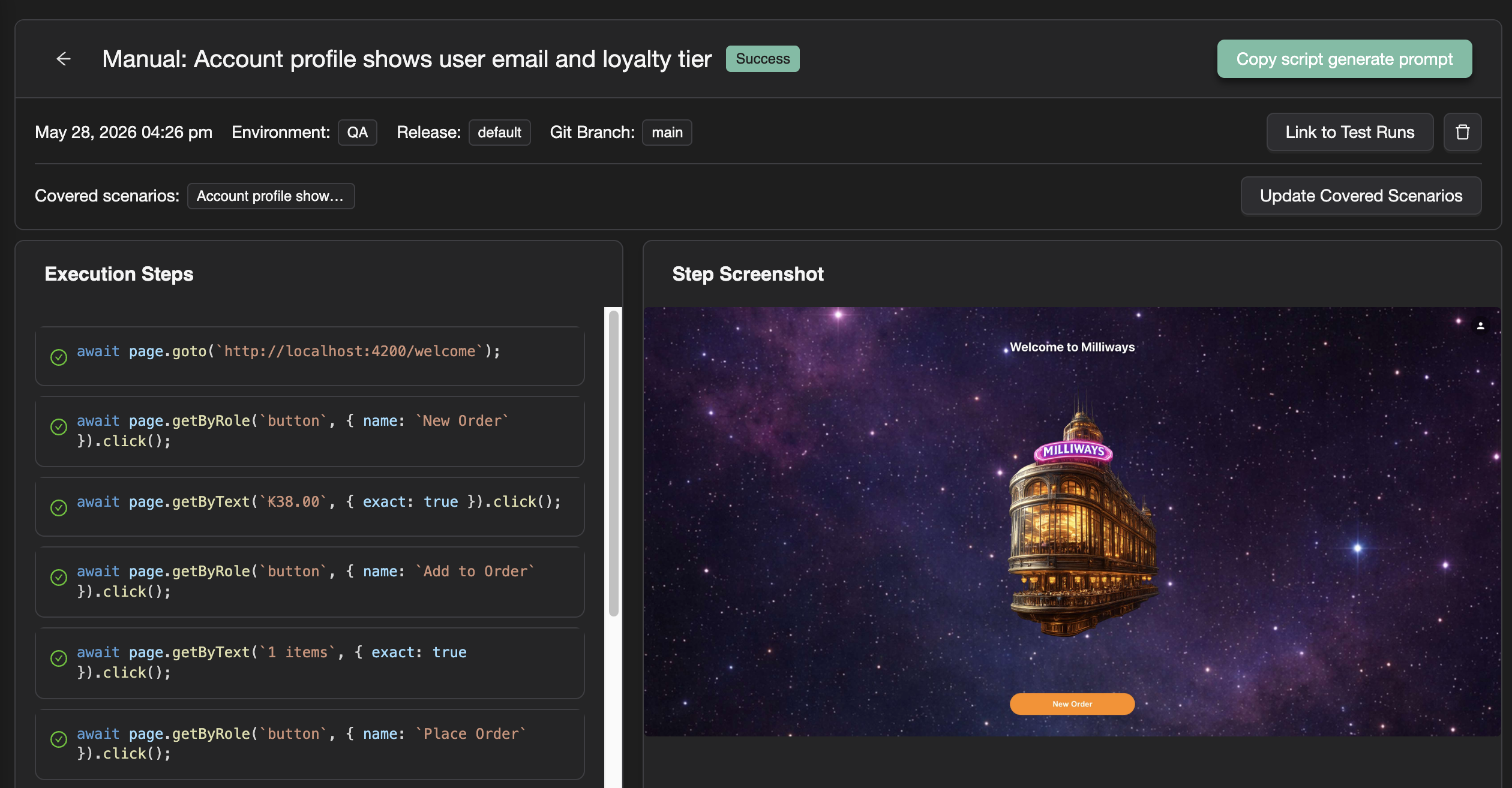
- Open the session in TestChimp — Executions → Manual Sessions → View, or View execution from the extension.
- Click Copy test generate prompt and paste it into your TestChimp upskilled agent (e.g. Cursor or Claude with the TestChimp skill).
- The agent fetches manual session details and linked scenarios (
get-manual-session-detailsvia CLI or MCP). Context includes:- Recorded steps (actions the tester performed)
- Linked scenarios (business intent, scenario steps, traceability targets)
- Screenshots per step (visual reference while navigating the app)
- Your repo's POMs, fixtures, seed/probe endpoints, and folder layout
- The agent authors a Playwright SmartTest that reuses existing harness patterns and adds seed/probe/fixture coverage where gaps exist—producing repeatable automation, not blind record-replay (why record-replay falls short).
- Review the generated script in the Web IDE (Code or Simplified view), run it, and iterate via your agent as needed.
Linking to test planning
When you start from Test Planning (Create Test → Record manual test steps), the extension pre-selects the project and scenario for traceability.
You can also start capture directly in the extension by choosing Test a scenario and selecting a scenario, or run open-ended with an objective only (no scenario link).
What the agent produces
Agent-authored SmartTests typically include:
- Playwright code aligned to your project (reuse of existing POMs and env patterns where possible)
- scenario annotation links when the session was scenario-linked
markScreenStatecheckpoints at stable UI points for ExploreChimp and Atlas- Fixtures and probes where the agent identifies setup or backend gaps
Refine selectors, add ai.act steps, and harden assertions in Git—the capture is a grounded starting point, not a finished test.
Compared to Playwright codegen
Manual capture plus agent authoring offers:
- Scenario and step context from Test Planning—not only DOM actions
- Screenshots per step for visual grounding while the agent navigates
- Repo-aligned output—POMs, fixtures, scenario links, and screen-state markers
- TestChimp integration—SmartTests land in your mapped folder and tie to scenarios and ExploreChimp workflows
For execution evidence without authoring automation (pass/fail, notes, bugs, test-run linking), see Manual test session capture.
Related documentation
FAQ
Does the extension still have a Script Gen tab?
No—the extension now has a single manual capture workflow. Author SmartTests by capturing a session, then using Copy test generate prompt with your TestChimp-skilled agent.
Where do agent-authored tests land?
In your mapped SmartTests folder via Git sync—same path agents and CI execute.
Can I add screen-state markers?
Your agent can insert markScreenState calls at stable points during authoring; refine in Git for ExploreChimp and Atlas alignment.