Linking Scenarios from SmartTests
In brief: Add a Playwright
annotationwithtype: 'scenario'anddescription: '#TS-<n>'on each SmartTest to declare requirement coverage; TestChimp rolls up linked and gap scenarios by folder and release.
Overview
Linking your SmartTests to scenarios enables requirement traceability, allowing you to see which user stories and scenarios are covered by your tests and track their execution status. TestChimp makes this process simple with Playwright test annotations (and still accepts legacy // @Scenario: comments in existing specs).
How to Link Tests to Scenarios
Adding Scenario Annotations (canonical)
To link a test to a scenario, pass Playwright annotation on the test options. type must be exactly scenario, and description is only the scenario ordinal id (#TS-<n>) — no free-form title:
test('login with valid credentials', {
  annotation: [
    { type: 'scenario', description: '#TS-101' },
  ],
}, async ({ page }) => {
  await page.goto('/login');
  await page.fill('#username', 'testuser');
  await page.fill('#password', 'password123');
  await page.click('button[type="submit"]');
  await expect(page).toHaveURL('/dashboard');
});
Multiple scenarios in one test: add more entries in the same annotation array:
test('checkout confirms order and sends receipt', {
  annotation: [
    { type: 'scenario', description: '#TS-101' },
    { type: 'scenario', description: '#TS-102' },
  ],
}, async ({ page }) => {
  // steps that cover both scenarios
});
Use the #TS-<n> id that already exists in TestChimp (from synced plan markdown or create-scenario responses). Do not invent scenario ids.
Deprecated: // @Scenario: comments
Older specs may still use:
test('login test', async ({ page }) => {
  // @Scenario: #TS-101 User can log in with valid credentials
  // ...
});
TestChimp still parses these comments for coverage and execution linking. Prefer Playwright annotations for all new and updated tests; when you touch a legacy file, rewrite the comment into an annotation entry.
How Linking Works
When a SmartTest declares a scenario link (annotation or deprecated comment):
- Test execution tracking: TestChimp identifies the linked scenario id during test execution
- Automatic linking: The test execution is automatically linked to the specified scenario
- Coverage calculation: The scenario's coverage is updated based on test execution results
- Roll-up to user stories: Coverage is aggregated at the user story level
Viewing Linked Coverage
Once tests are linked to scenarios, you can view coverage in:
User Stories View
- Navigate to the User Stories section
- Click "Show Test Coverage"
- Select the execution scope (environment, release, time range)
- View coverage indicators on user stories and scenarios
For more details, see Requirement Traceability.
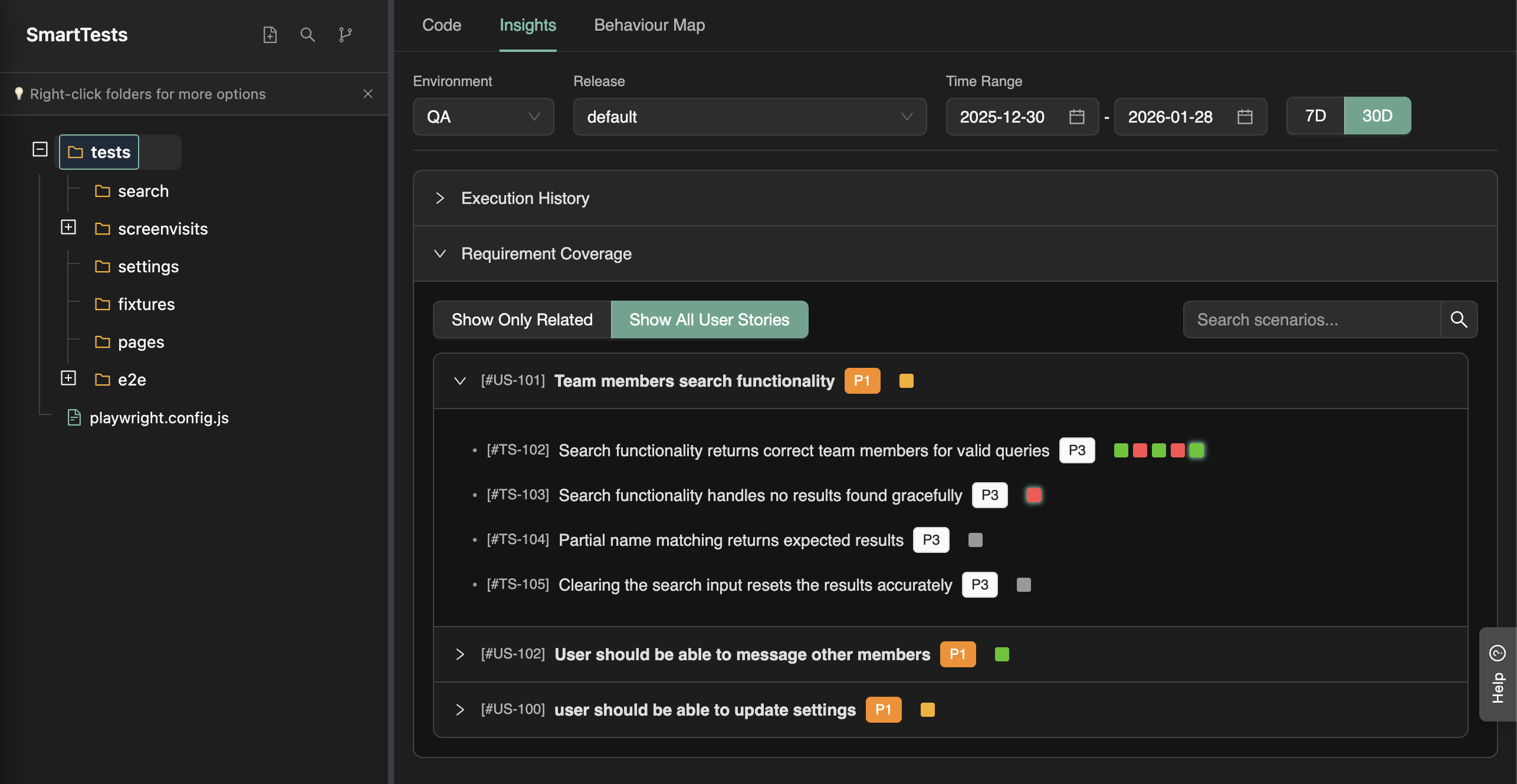
Insights Tab - Requirement Coverage
- Navigate to SmartTests section
- Open the Insights tab
- Select Requirement Coverage pane
- View which user stories are covered by your tests
Best Practices
1. Use Real Scenario Ordinals
- Platform ids only:
descriptionmust be an existing#TS-<n>from TestChimp — never invent ids - Id only: do not put scenario titles or free-form text in
description
2. Link at the Right Granularity
- One scenario per test: Generally, one scenario annotation per test provides the clearest traceability
- Multiple scenarios when appropriate: Link multiple scenarios in the same
annotationarray if a single test genuinely covers multiple scenarios
3. Link All Relevant Tests
- Cover all scenarios: Ensure every scenario has at least one test linked to it (use coverage dashboards to identify gaps)
Integration with CI/CD
When you run tests in CI with @testchimp/playwright configured, scenario annotations (and deprecated // @Scenario: comments) are automatically extracted and test executions are linked to scenarios. No additional configuration is needed.
For details on setting up CI execution, see Run SmartTests in CI with Playwright Runner.
Troubleshooting
Tests Not Showing in Coverage
- Check the annotation: Ensure
typeis exactlyscenarioanddescriptionis exactly#TS-<n> - Verify scenario exists: Confirm the scenario exists in your TestChimp project
- Check test execution: Ensure tests have been executed (either directly or via CI)
- Review execution scope: Check that the selected execution scope includes your test runs
- Legacy comments: If using deprecated
// @Scenario:, ensure the#TS-<n>id is present and correct
Linking scenarios from SmartTests is a simple but powerful way to enable requirement traceability and gain visibility into how your tests cover your requirements.
FAQ
What is the exact annotation syntax?
Use `{ type: 'scenario', description: '#TS-<n>' }`—multiple annotations allowed per test.
Where do I view linked coverage?
SmartTests Insights tab, Test Planning Insights, InfiniTrace, and /testchimp audit all consume scenario links.
Do unlinked scenarios block CI?
No—but insights highlight gaps so /testchimp test and evolve prioritize high-risk unlinked scenarios.