Verified Tests: When Agents Write the Coverage, Trust—but Verify

TL;DR: Agents built the product. Agents authored the tests that verify the implementation. The missing piece is accountability—has anyone actually looked at the test to ensure it truly verifies the scenario? Verified Tests puts that sanity check in the platform: inspect screen captures, steps, and code, then stamp a Verified Badge on the covering scenario.
Full product guide: Verified Tests.
The missing piece is accountability
Agents are very good at getting a path green.
The SmartTest runs. The scenario is linked. Requirement coverage looks healthier than last sprint.
That is not the same as: this test actually verifies the behaviour the scenario describes.
Has anyone actually looked at the test?
A scenario annotation is cheap to add—and agents add them at speed. They can link the right scenario to a script that asserts a toast, skips the important check, or walks a cousin flow that happens to share a button. The dashboard still counts it as coverage.
We used to paper over that with implicit knowledge: the person who wrote the test was the person who knew what it proved. Agents broke that assumption. Volume went up. Inspection did not.
| Failure mode | What goes wrong |
|---|---|
| Linked ≠ proven | The test is tagged to a scenario but never asserts the expected outcome |
| Happy-path impersonation | A green run for a neighbour flow masquerades as coverage of the hard one |
| Unowned claims | Coverage reports “covered”; nobody can say who looked at the script |
Green is an execution fact. Linked is a mapping. Verified is the accountability layer: a person has sanity-checked that the covering test truly verifies the scenario.
That is the problem Verified Tests solves.
Why this is necessary in the agentic era
Before agents, test authoring was slow enough that “who wrote this?” was a reasonable proxy for “who checked this?”
That proxy is dead.
Agents implement. Agents author SmartTests. Agents attach scenario ids because the plan files told them to. You still need a durable record that a person opened the execution, looked at what actually happened, read the script, and agreed: yes, this test verifies that scenario.
Otherwise requirement traceability is a spreadsheet of claims with nicer UI. Coverage insights tell you what ran. They do not tell you whether the test is the right test.
Introducing Verified Tests
TestChimp now lets you Verify tests in the platform—without bouncing out to a repo or a recording elsewhere.
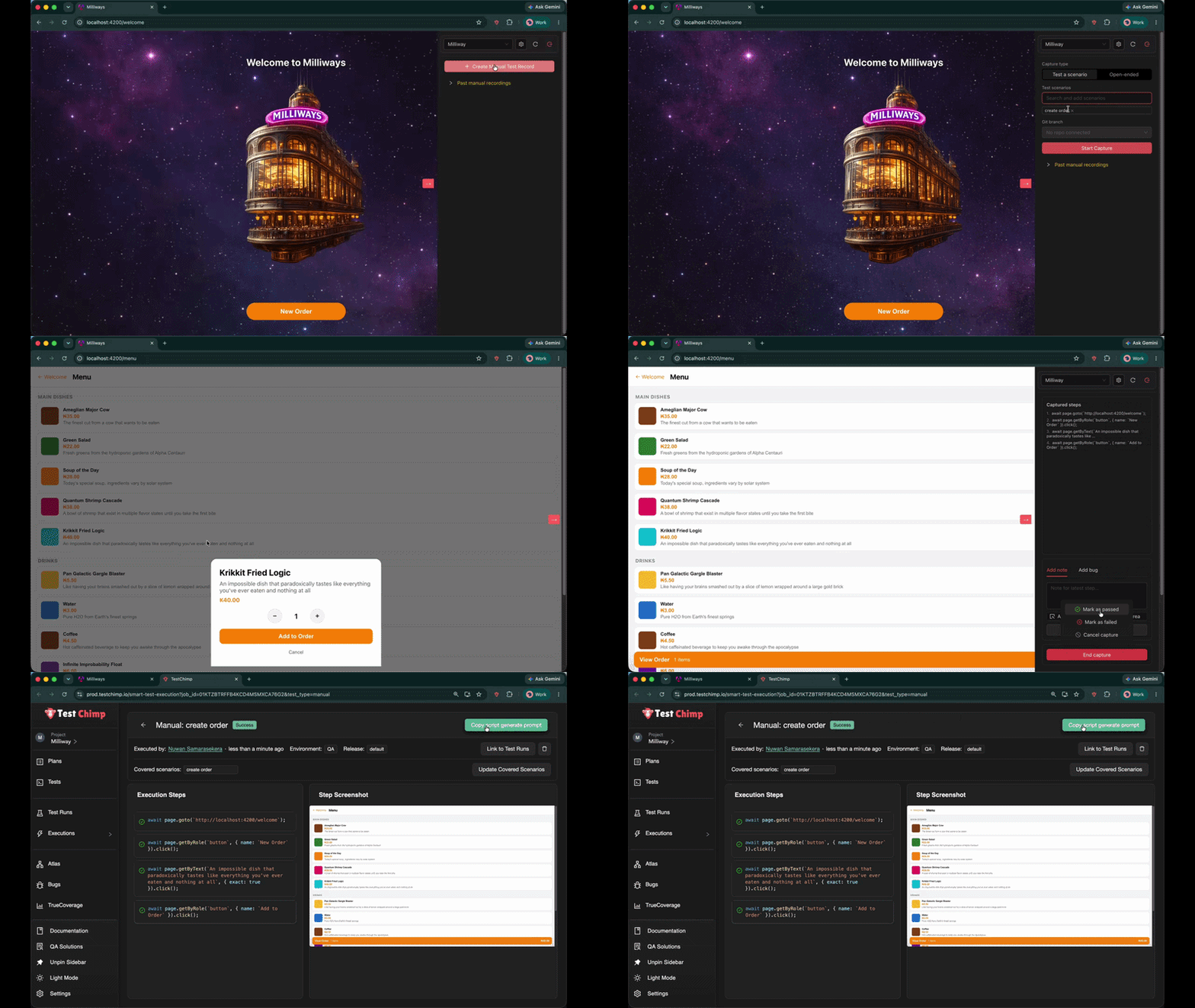
Open a SmartTest execution and you already have what you need to make an informed decision:
- Screen captures from the run
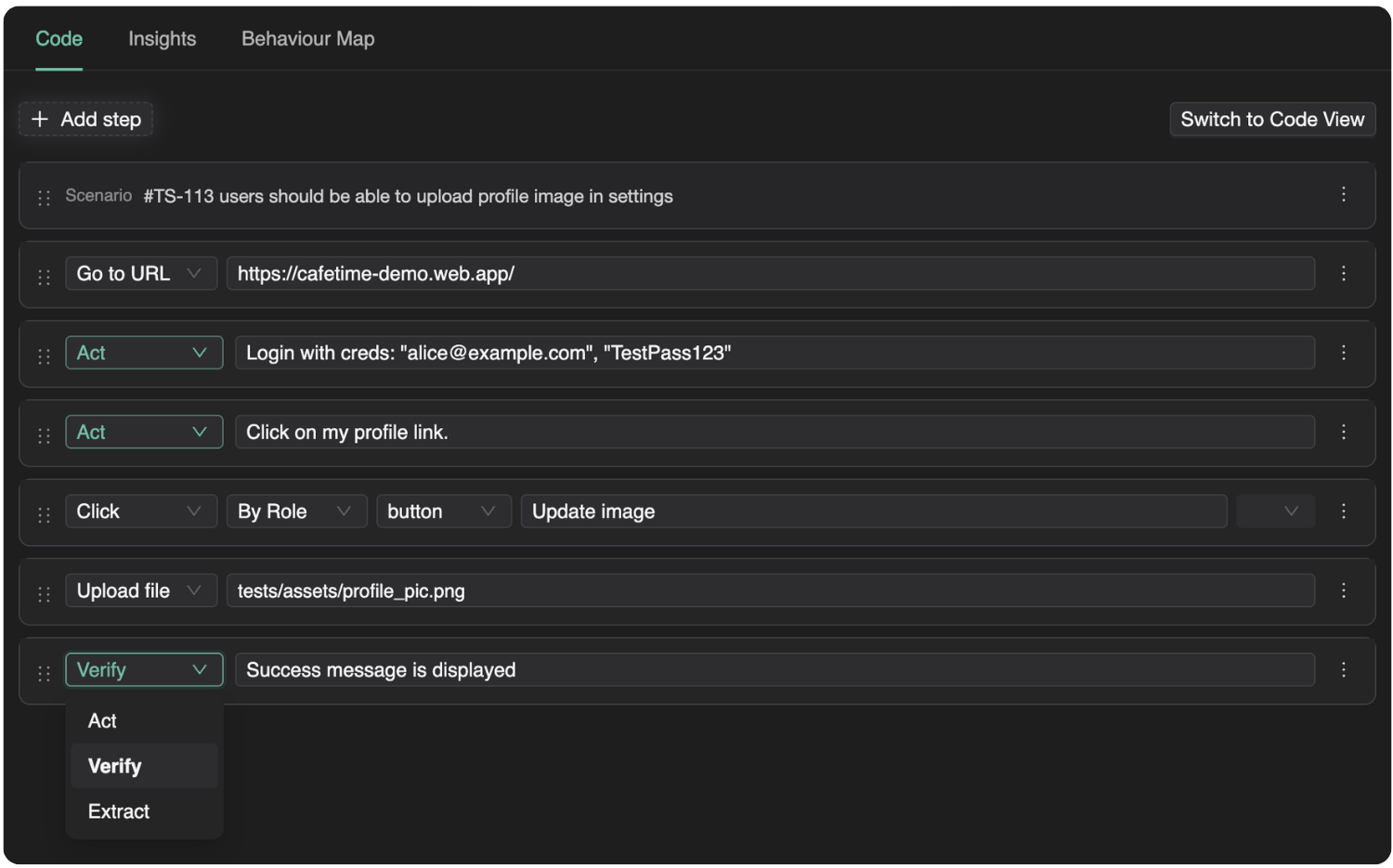
- Steps the test actually took
- The code, via View Test, so you can read the script next to the evidence
Then use the check badge next to the SmartTest name. Same visual language as a verify badge elsewhere on the internet, because the job is the same: this was inspected.
Three states on the test:
- Hollow — none of the linked scenarios are verified
- Grey — some, not all
- Blue — every linked scenario for that test is verified
For one scenario, you confirm. For several, you verify per scenario—or Mark all as verified. Hover a filled badge and you see who verified it.
Un-verify is deliberate: it records manually unverified, not “never happened.” The audit trail stays.
Status lives in TestChimp, not in source. Agents can keep authoring Playwright. Humans stamp the claim when they have actually looked.
A Verified Badge on scenario coverage
Plans, requirement coverage, and test runs already show recent execution results per scenario.
You now also see a Verified Badge on each scenario—an extra layer of assurance that the product is being tested properly, not only that something ran green.
- Filled — a user has sanity-checked a covering test for that scenario
- Hollow — the scenario has tests, but nobody has inspected them yet
- Omitted — no linked tests, so there is nothing to verify
Clicking the coverage-side badge does not flip the bit. It tells you how: open an execution, inspect the run, then use the check badge next to the test name. Verification is an inspection action, not a bulk paint on a dashboard.
That is the point. If it were too easy, we would have rebuilt the original lie at a larger scale.
How this fits the rest of TestChimp
If you’ve been following along:
- Test Planning as Code puts stories and scenarios in Git so agents have a real task
- Scenario annotations declare which SmartTest claims which scenario
- Requirement traceability rolls execution results up the plan
- Verified Tests records that a human checked the claim—not just that CI was green
Planned reality → linked automation → inspected coverage → release confidence. The middle of that chain was the hole once agents started writing both sides.
Frequently asked questions
What is a verified test?
A verified test in TestChimp is a SmartTest a project member has inspected and confirmed actually covers a linked scenario. It is more than a green run or a scenario annotation: someone looked at the screen captures, steps, and code, and stamped the claim.
How is verified different from linking a test to a scenario?
Linking (a Playwright annotation with type: 'scenario' and #TS-<n>) is a coverage claim. Verification is a human sanity check of that claim. You can have linked, green, and still unverified.
Where do I verify a SmartTest?
Open a SmartTest execution (click a coverage square). Inspect the screen captures, steps, and test code, then use the check badge after the test name. Coverage-train badges are read-only hints.
What does the Verified Badge on a scenario mean?
A filled badge means at least one covering SmartTest has been manually verified for that scenario. Hollow means tests exist but have not been sanity-checked yet. No linked tests → no badge.
Does renaming a scenario reset verification?
No, as long as the scenario ordinal (#TS-n) stays the same. Linking a different scenario is a new claim and starts unverified.
Can I un-verify?
Yes. Confirming un-verify sets the link to manually unverified (distinct from never verified). Who/when hover applies to the verified state.
What if the test has no linked scenarios?
It cannot be marked verified. There is no scenario claim to inspect. Link the scenario first.
When agents run your SDLC, trust—but verify.
Docs: Verified Tests · Link tests to scenarios · Requirement traceability.